09 Sep 2023

LabCare Express Doctors

Almost all the tests are referred by Doctors.To keep track of Tests sent by particular Doctor list of Doctors is predefined.It made easy New Report entry.

On the Dashboard click on Doctor icon and list of Doctors will be opened as following.All the Doctor related operations will be done here.
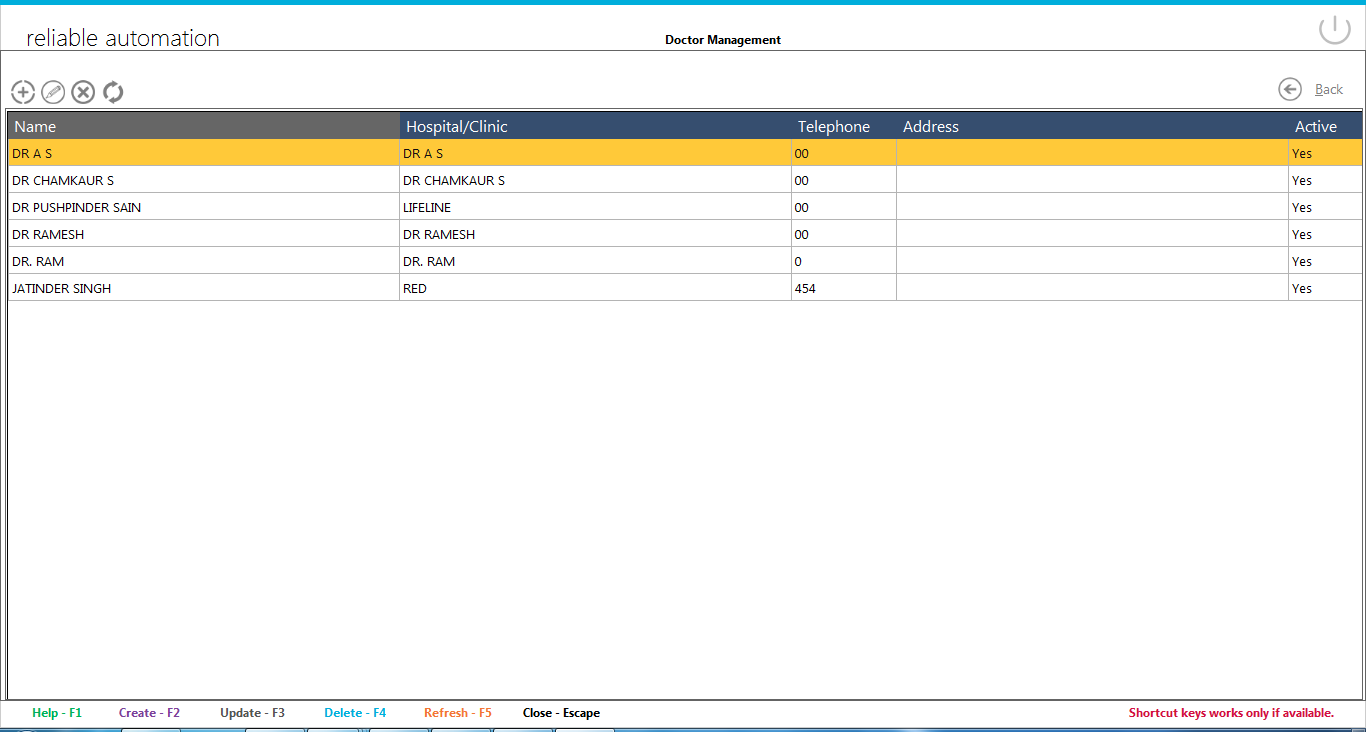
Doctors ListAbove the list on left side are Four icons of Doctor operation.These are :

  1. Add Doctor: To add new Doctor,click on it
  2. Edit Doctor : To edit existing Doctor, First select that Doctor from list then click on it.
  3. Delete Doctor : To delete existing Doctor, First select that Doctor from list then click on it.
  4. Refresh/Reload Doctor List : To reload/refresh the list click on it.List will be refreshed after the above three operations.

Add/Edit Doctor

Clicking on add new Doctor or edit Doctor will open window like following:
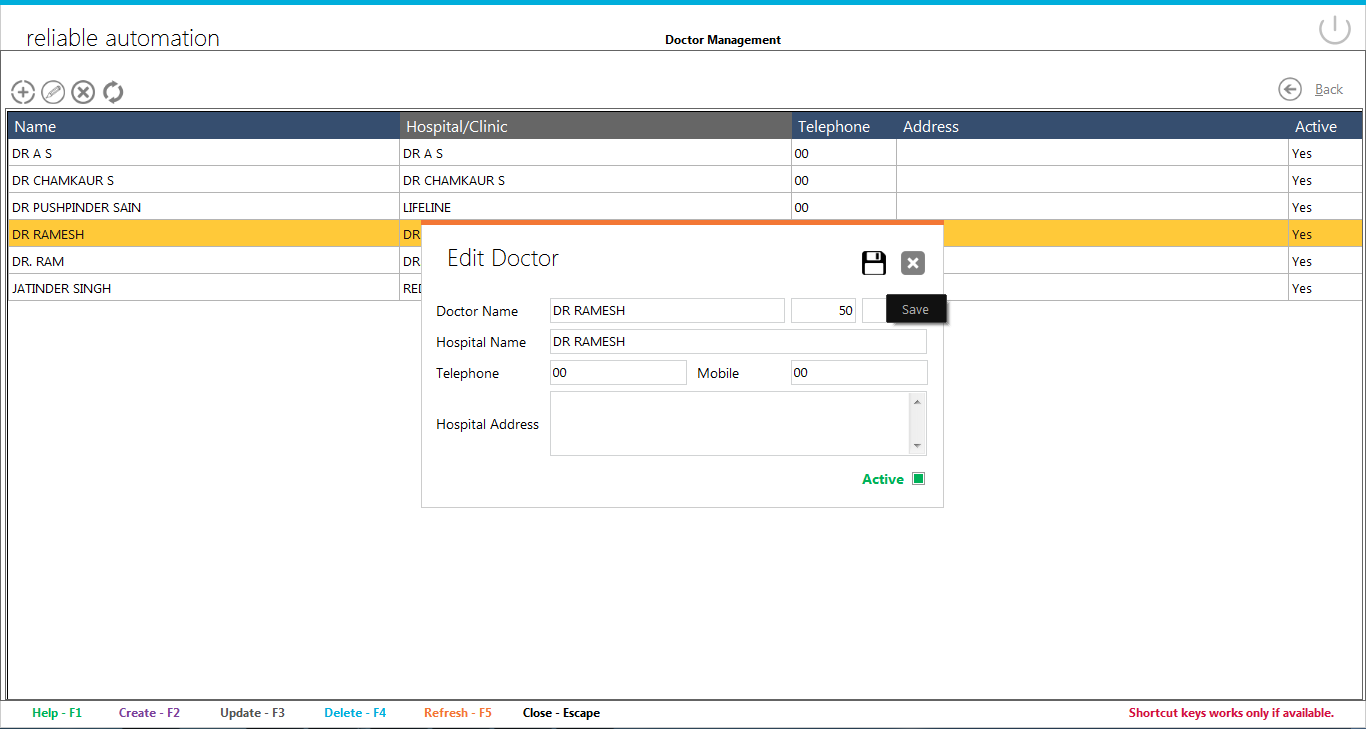
add edit doctor

Add/Edit Doctor Name

Two boxes are there for Doctor.First box is for test performed in-house and second is for test sent to other labs.

Enter hospital name.

Telephone/Mobile number are optional.

Add hospital address.

Doctor will be visible in listing only if it is set to Active.

Note: If Doctor details are used in any report then some of the details not possible to change.
Share this
09 Sep 2023

LabCare Express Tests

This is a critical section of software.Setting done here will be used for all the reports.Be carefull while doing changing in test details.

Test List

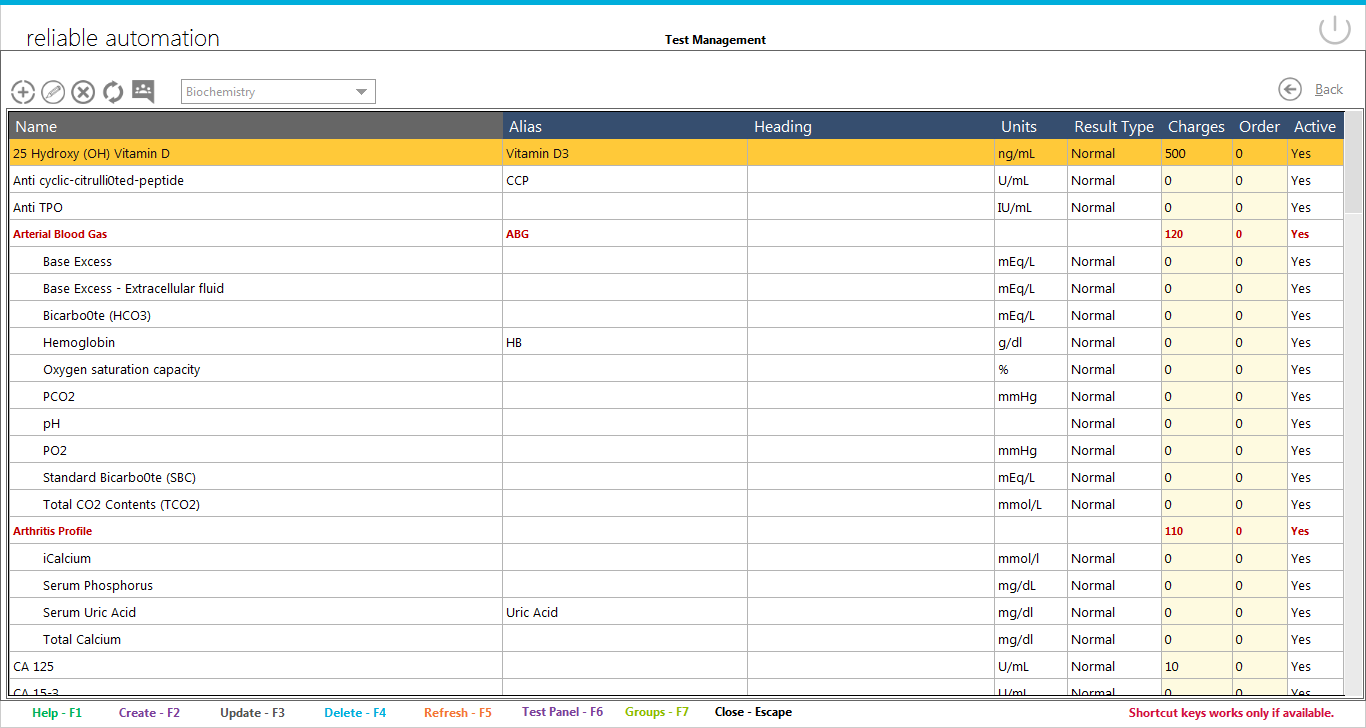
On the Dashboard click on Test icon and list of Testes will be opened as following.All the Test related operations will be done here.You will see a selection box where you can select the Category Name.Upon selection category all the test in that category will be listed. Click on Charges column will enable us to save new charges of Test.

test listAbove the list on left side are Four icons of group operation.These are :
  1. Add Test : To add new Test ,click on it
  2. Edit Test : To edit existing profile, First select that Test from list then click on it.
  3. Delete Test : To delete existing Test , First select that Test from list then click on it.
  4. Refresh/Reload Test List : To reload/refresh the list click on it.List will be refreshed after the above three operations.


Add/Edit Test

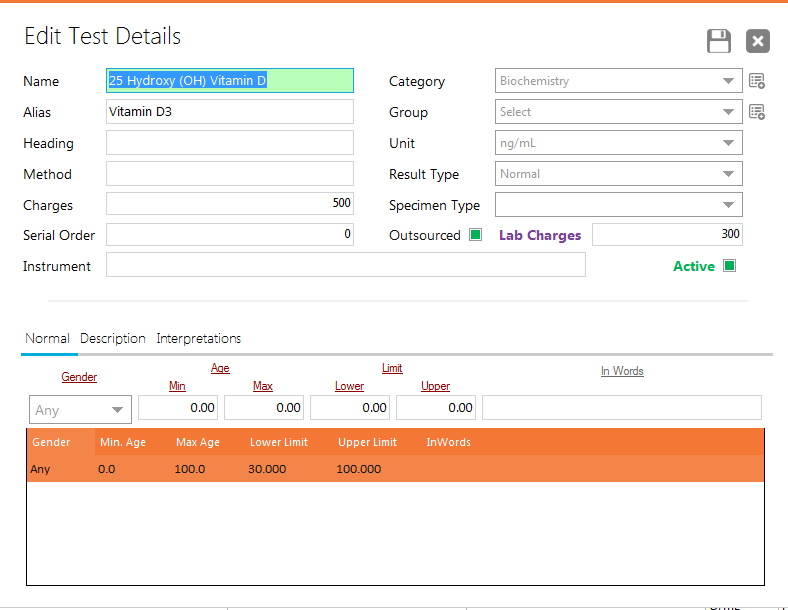
Clicking on add new Test or Edit Test will open window like following:

Add edit test

Add/Edit Test Name

Alias is optional short name of Test.

Result Type is selection used to store how Test Result input will be done at the time of Report Generation

  • Normal Values are only numeric Default values between some range.Click on Normal tab to add ranges.
  • List values are listed when Result might be from some specific values like Stool Color might be Yellow or Pale Yellow.
  • Memo is a Long Text of detail analysis.
  • Table option is only for Widal Test.
  • Formula is used when Result will be out put of some calculation.

Method is readonly field used for internal purpose.

Price is used in Report Generation.

Unit is the value used to perform result.

Description is the text used to save some details of test.

A Test will be visible in listing only if it is set to Active.

Interpretations are also used to store various interpretations of Test Like used in Ultrasound

Share this
09 Sep 2023

LabCare Express Categories

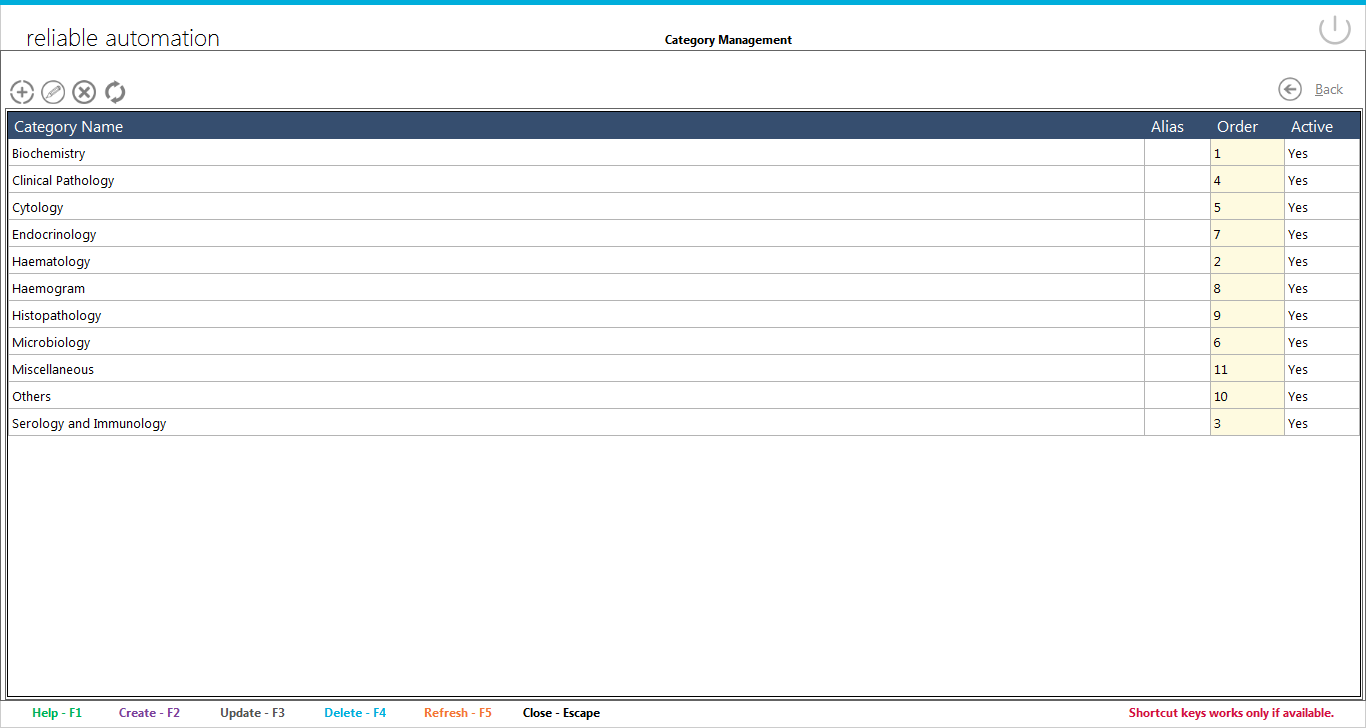
To divide the Test according to thier test types Categories are defined.Each category may have number of tests.

Category List

On the Dashboard click on Categories icon and list of catgories will be opened as following.All the catgories related operations will be done here.Categories Lsit

Above the list on left side are Four icons of catgory operation.These are :

  1. Add Catgory: To add new group,click on it
  2. Edit Catgory: To edit existing Catgory, First select that Catgory from list then click on it.
  3. Delete Catgory: To delete existing Catgory, First select that Catgory from list then click on it.
  4. Refresh/Reload Catgory List : To reload/refresh the list click on it.List will be refreshed after the above three operations.

Add/Edit Catgory

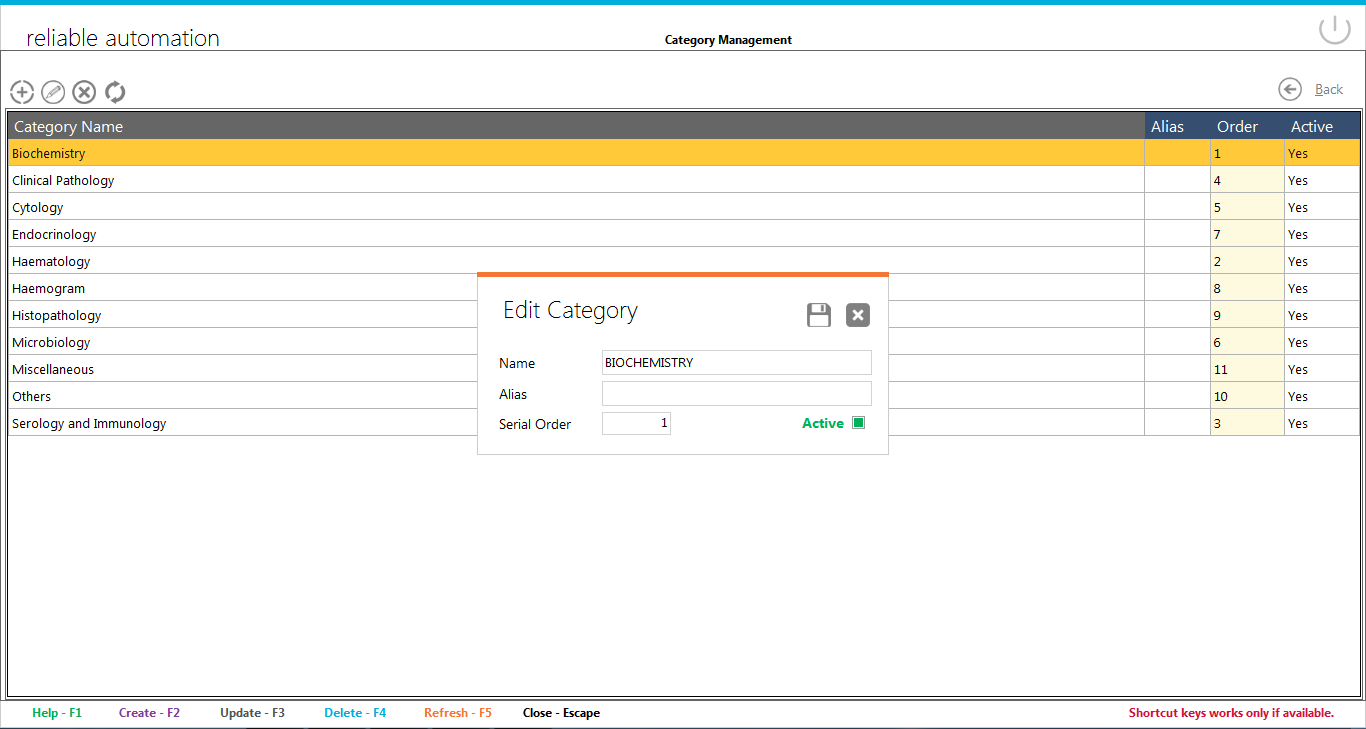
Clicking on add new Catgory or edit Catgory will open window like following:
Categories add edit

Alias is optional short name of Catgory.

A Catgory will be visible only if it is set to Active.

Serial order is used in report when two or more category test are added


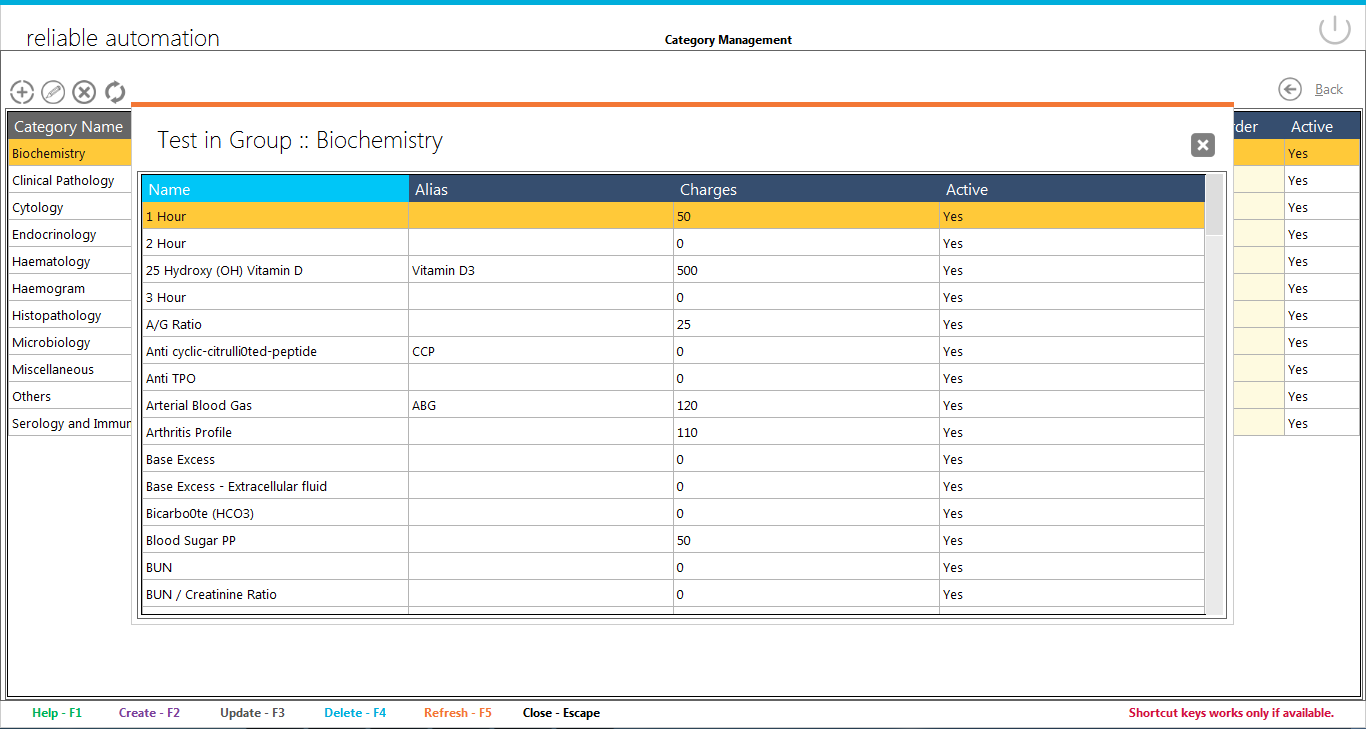
Test List

Pressing spacebar opens a popup window with list of Tests in selected Catgory as following

Category Test List

Share this
09 Sep 2023

Labcare Express Dashboard

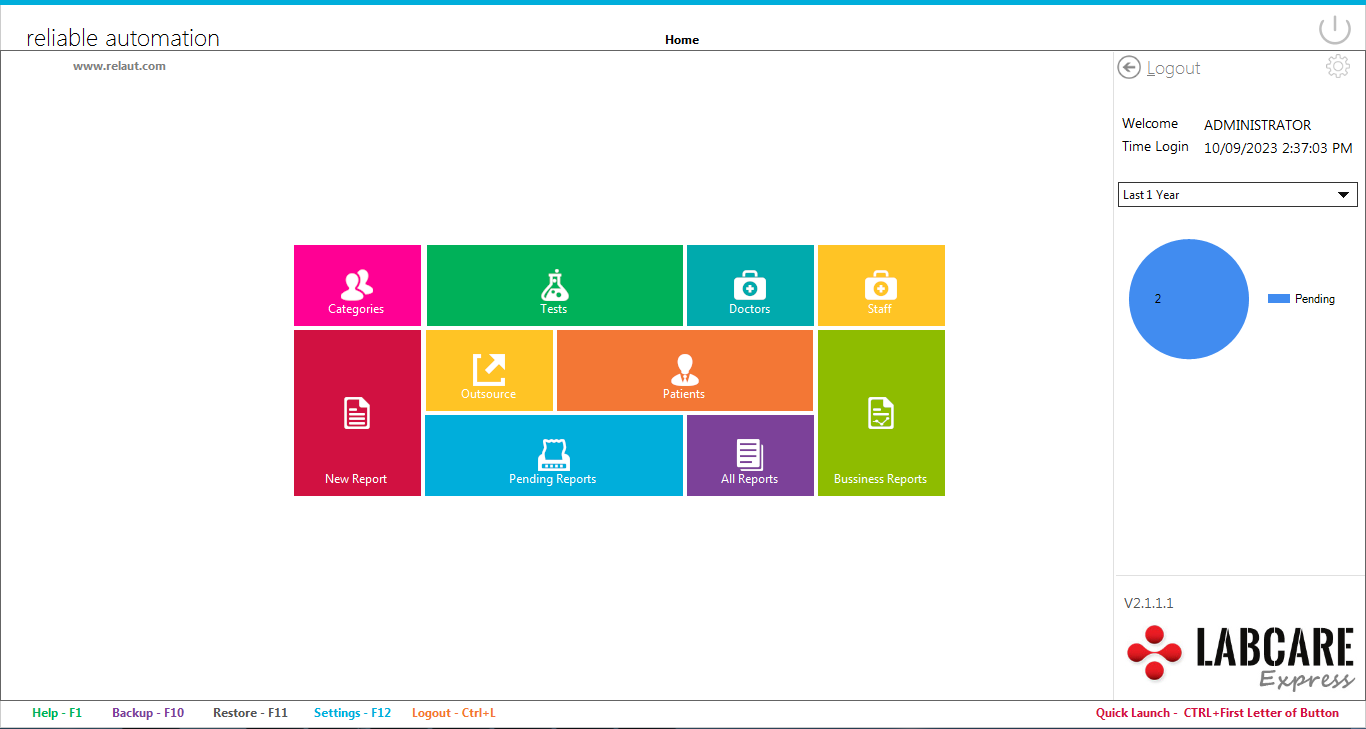
The following window will appear on the screen after you enter a valid user name & password.All the further windows will be opened from here.This software if not using menu system anywhere instead we made a Dashboard to control everything.

LabCare Express DashboardYou can see following shortcuts/icons here
  • Categories
  • Tests
  • Doctors
  • Staff
  • New Report
  • Outsource
  • Patients
  • Pending Reports
  • All Reports
  • Reports

Besides this you can see on right side a dropdown.Each value of this dropdpown will show tests/reports info of  day/week/month/year.

On the Top you can see Logout button to go out of Dashboard without closing it and a Setting icon to behave software according to you.

Share this
09 Sep 2023

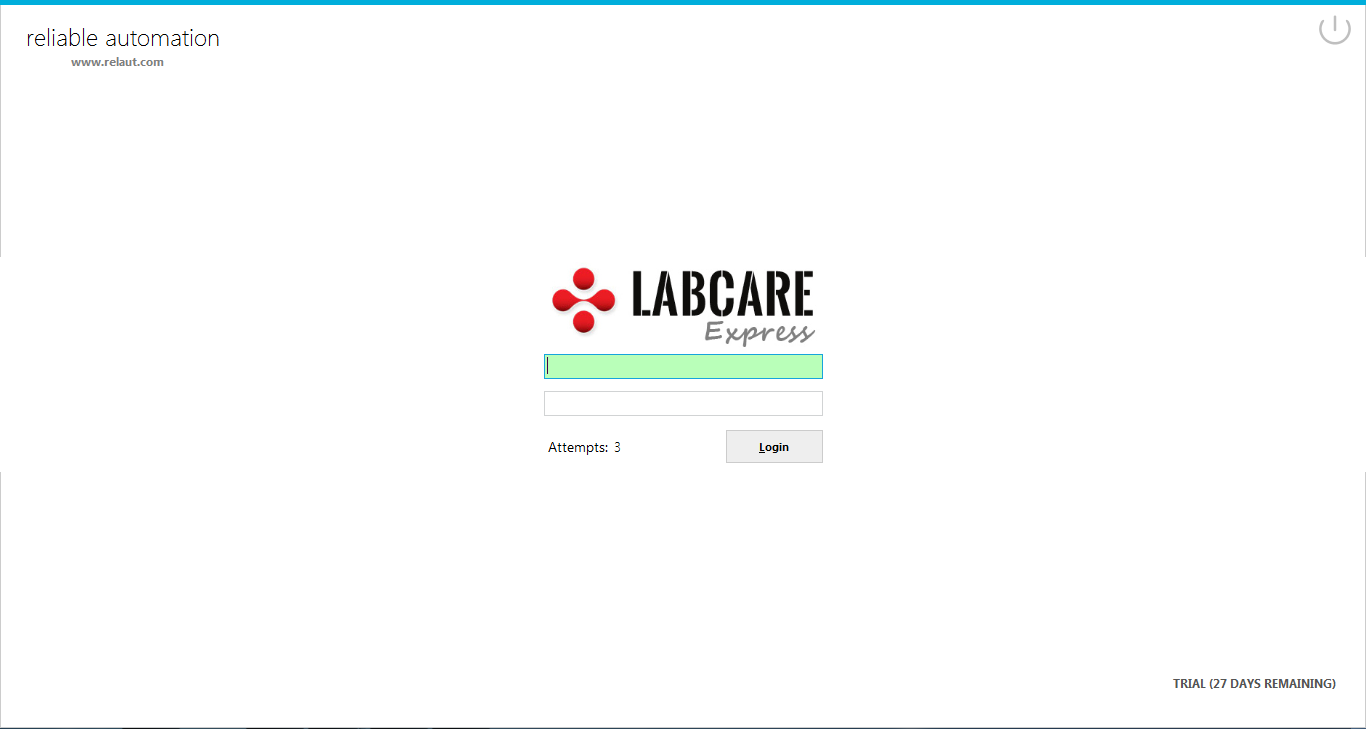
Login to LabCare Express

The following window will appear on the screen when you start LabCare Express. This window ask for user name & password.

Enter the user name & corresponding password and press login button to proceed further. User Name and Password are case sensitive.

Default User name is ADMIN and password is ADM.
Login to LabCare Express

Share this
22 Oct 2018

Examination Reliable School Management System

Examination module has 4 sections –

  1. Exam List
  2. Exam Schedule
  3. Marks Register
  4. Marks Grade

First we will prepare Marks Grade then create exam in Exam List then enter Exam Schedule then enter marks in Marks Register. Note that there is no need to prepare Marks Grade if your institution is not following Grading System in exams. Just leave Marks Grade & don’t make any entry in it.

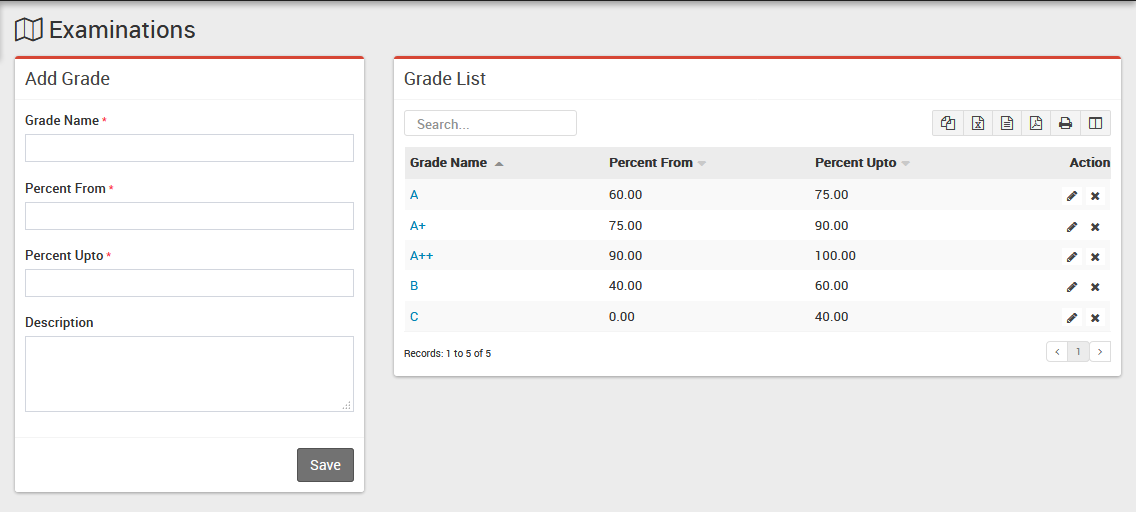
  • Marks Grade– Go to Examination > Marks Grade enter Grade Name, Percent From, Percent Upto, Description & click on Save button. All the grades can be see at right side of this page.Examination Grade Report Reliable School Management System
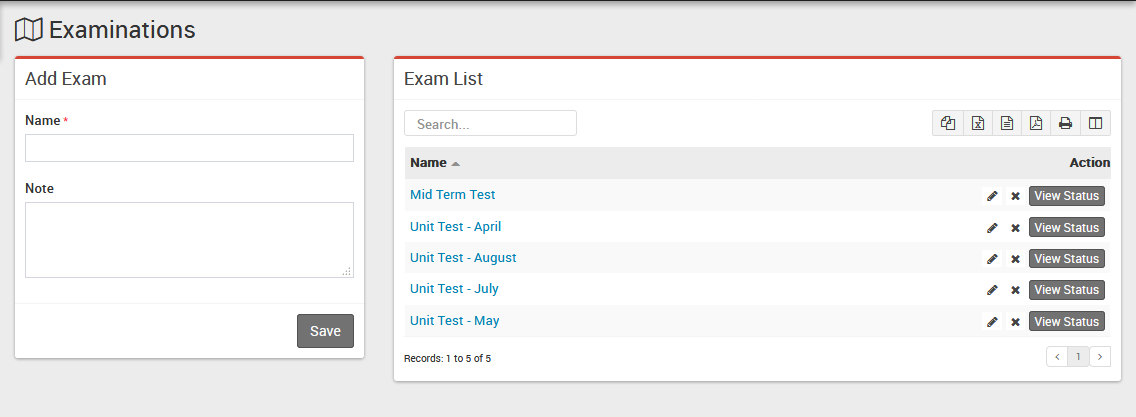
  • Exam List– Go to Examination > Exam List enter Exam Name, Note & click Save button. All the exams can be see at the right side of this page, you can also check exam status by clicking View Status button.Exam List Reliable School Management System
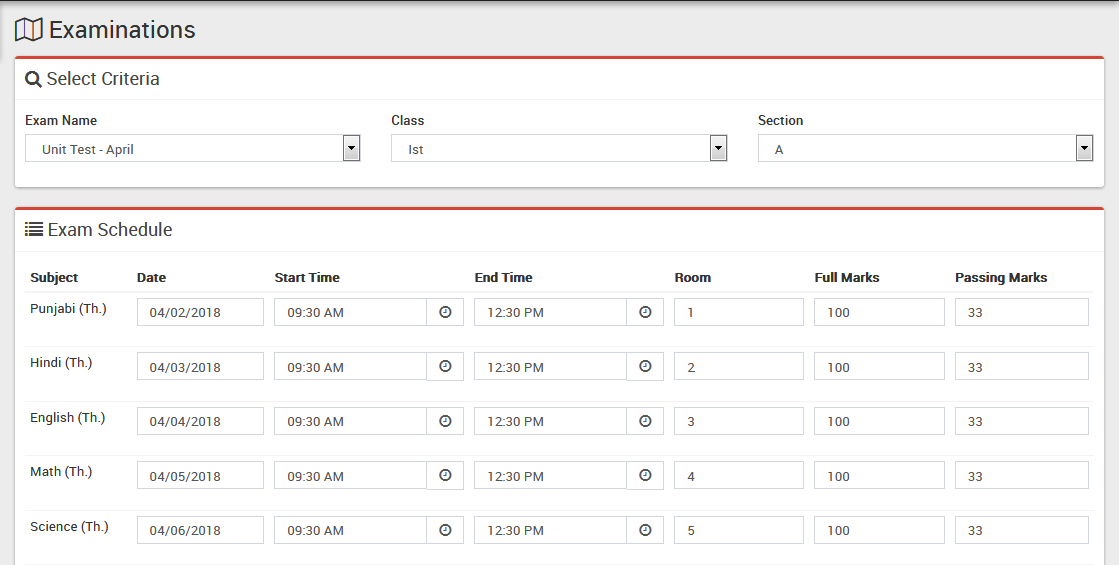
  • Exam Schedule– Go to Examination > Exam Schedule this section has two parts 1) Adding/Editing Exam Schedule 2) Viewing existing Exam Schedule.
    For Adding/Editing Exam Schedule click on Add button then on next page select Exam Name, Class, Section then you will get all Subjects now enter Date, Exam Start Time, Exam End Time, Exam Room, Exam Subject Full Marks, Exam Subjects Minimum Passing Marks & click on Submit button to save exam Schedule. Exam Schedule Reliable School Management System
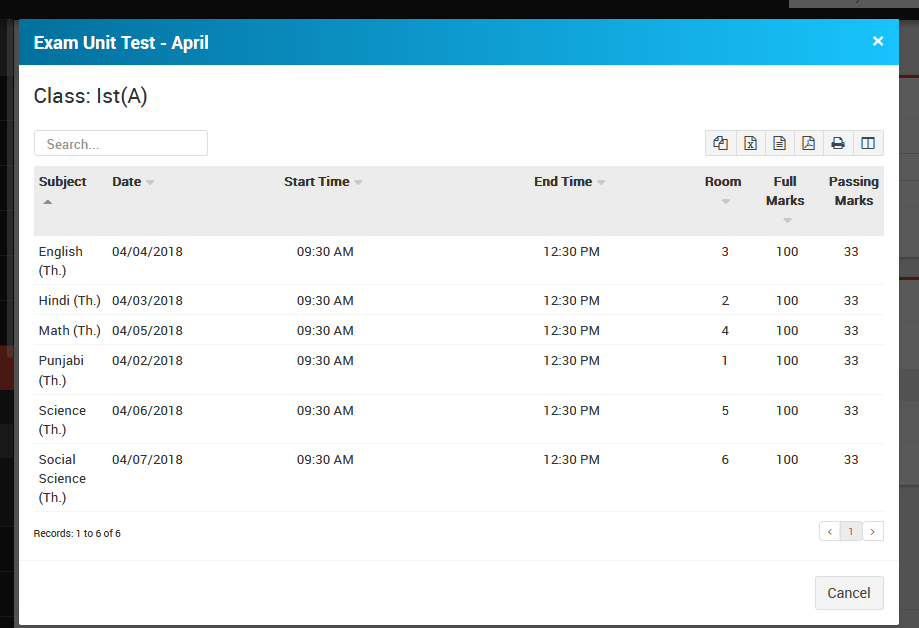
    For viewing existing Exam Schedule (go to Examination > Exam Schedule) select Class, Section then click Search button, you will see all exams under this Class-Section now click View to see Exam Schedule.Datesheet Reliable School Management System
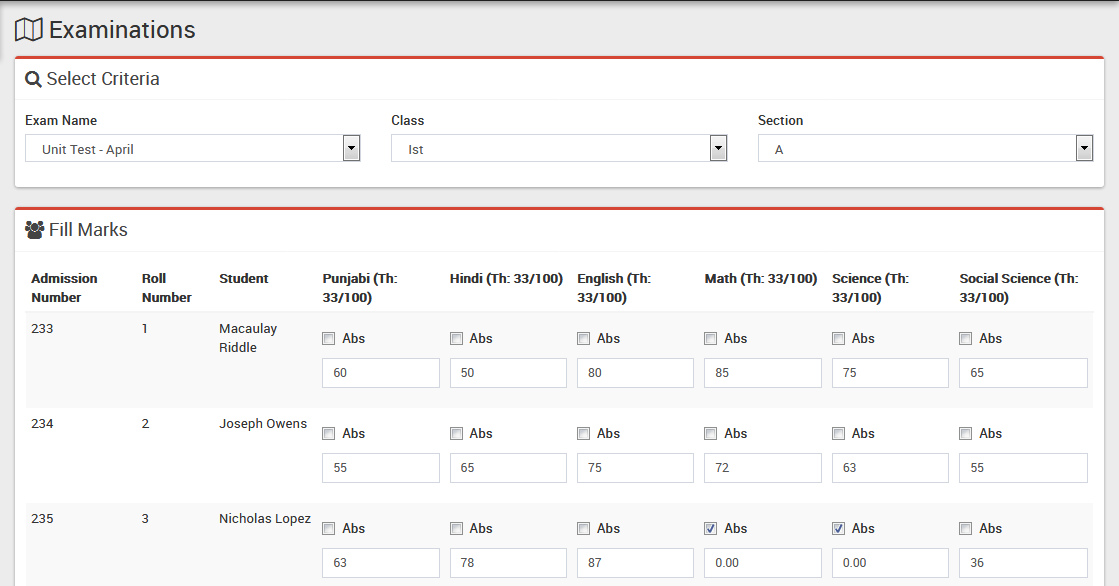
  • Marks Register– Go to Examination > Marks Register Marks Register section has two parts 1) Adding/Editing exam marks 2) Viewing exam marks.
    For Adding/Editing Exam Marks click on Add button then on next page select Exam Name, Class, Section then you will get all students list now enter marks for all the exam subjects & click on Save button to submit marks. Marks Entry Reliable School Management System
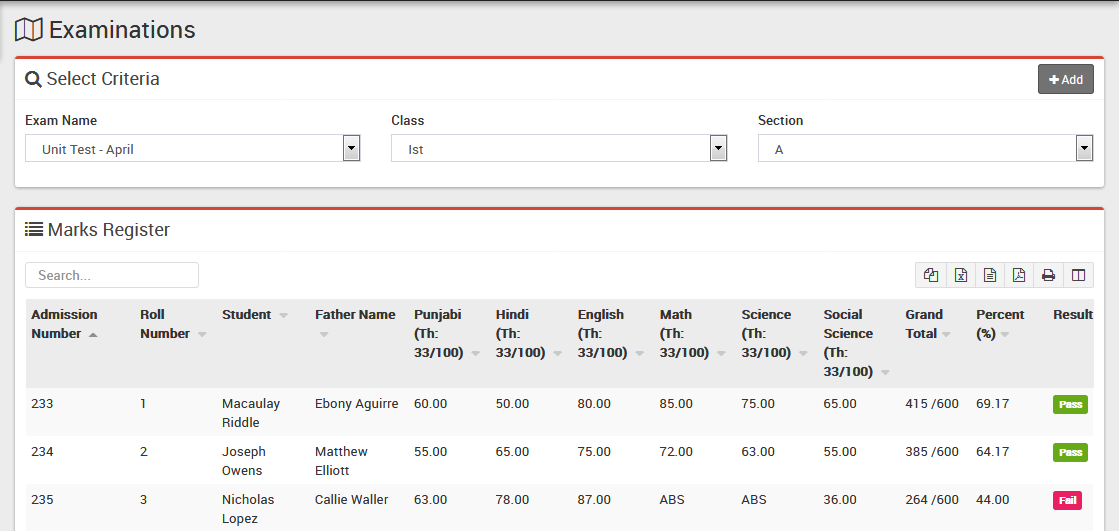
    For viewing Exam Marks (go to Examination > Marks Register) select Exam Name, Class, Section to see marks list. Result Reliable School Management System
Share this
22 Oct 2018

Attendance Reliable School Management System

Student Attendance  module has 3 sections –

  1. Student Attendance
  2. Attendance By Date
  3. Attendance Report

First we will enter Student Attendance then we will search student attendance for a particular date or we can get whole month students Attendance Report.

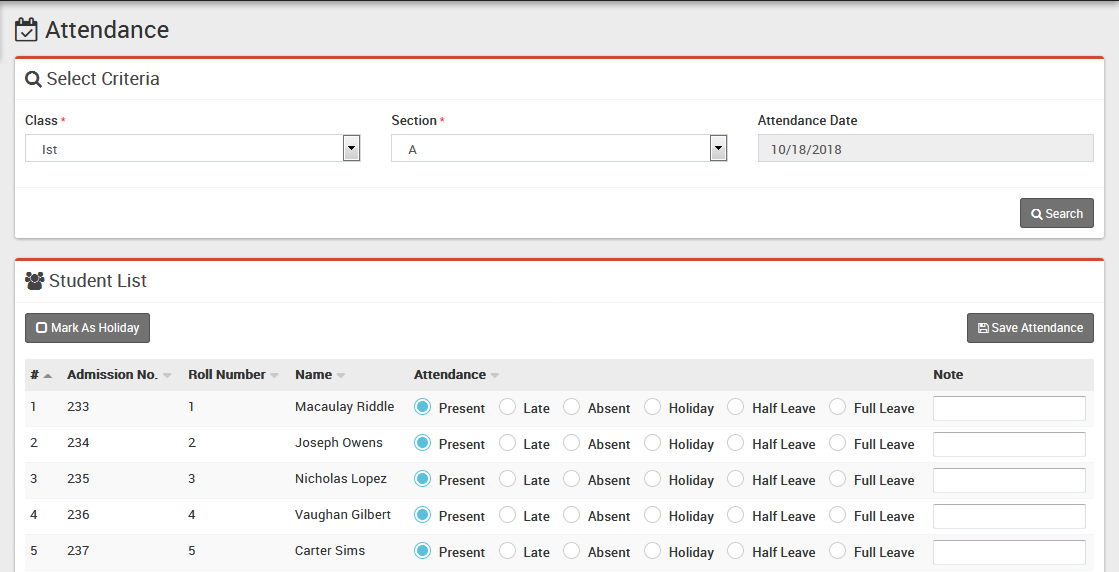
  • Student Attendance– Go to Attendance > Student Attendance select Class then Section then Attendance Date then click Search button. Now below you can see list of students & attendance options like Present, Late, Absent etc. Select the attendance for students then click on Submit Attendance button. To enter National Holiday or Sunday select Mark as holiday button then Submit Attendance button. Note that is attendance is already submitted for a date then you can only edit attendance.Attendance Report Reliable School Management System
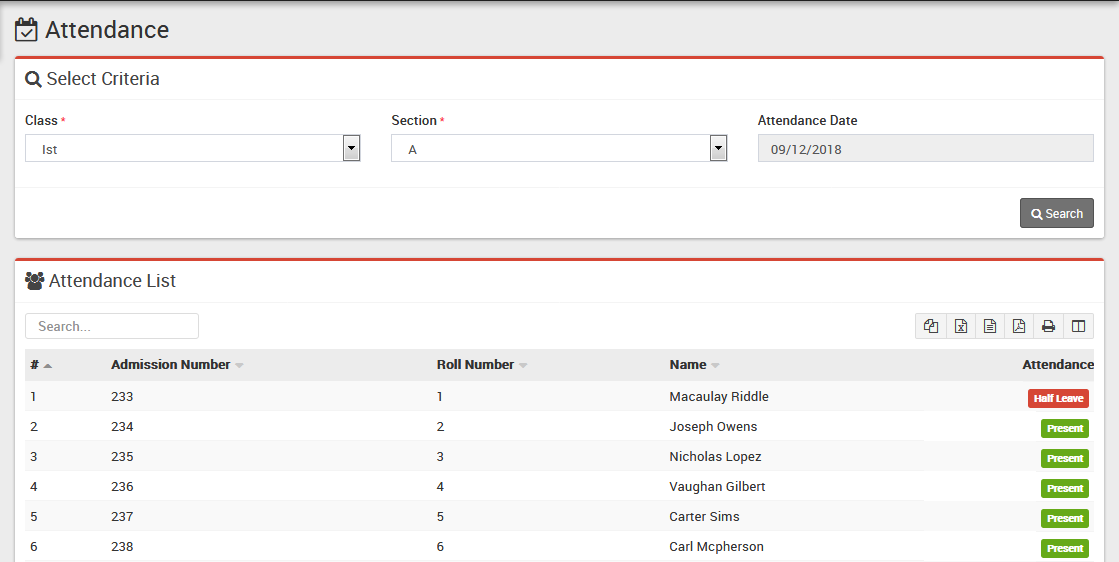
  • Attendance By Date– Go to Attendance > Attendance By Date to check attendance for a particular date select Class then Section then Date then click on Search button. Attendance Report Reliable School Management System
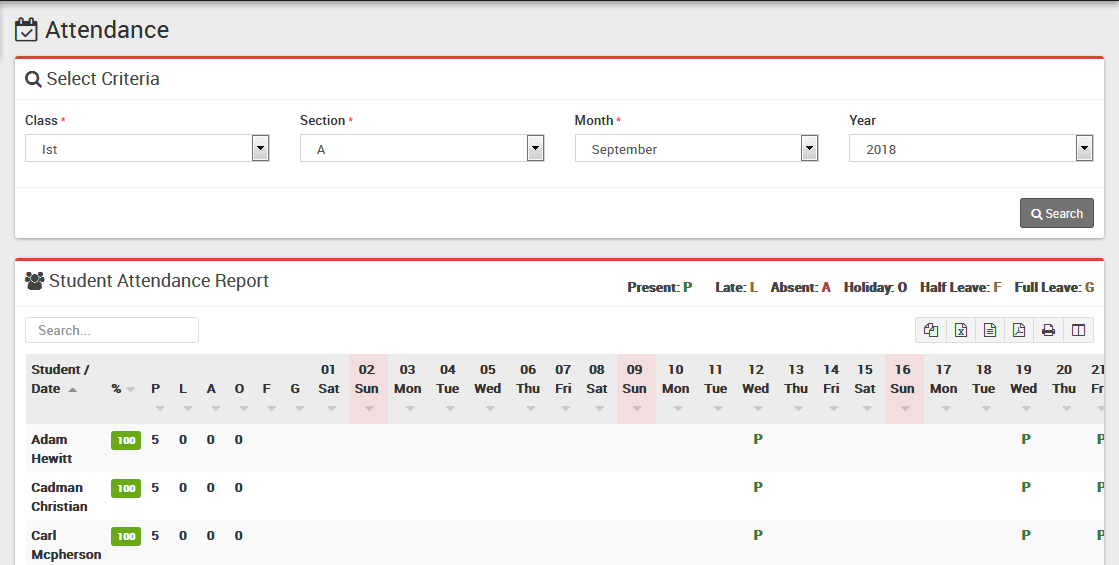
  • Attendance Report– Go to Attendance > Attendance Report to check attendance for a whole month select Class then Section then Month then click Search button. Attendance Report Reliable School Management System
Share this
07 Oct 2018

Expenses Reliable School Management System

Expenses module has 3 sections –

  1. Add Expense
  2. Search Expense
  3. Expense Head

First we will create our Expense Head then we will Add our daily/monthly Expenses then we will Search our Expense.

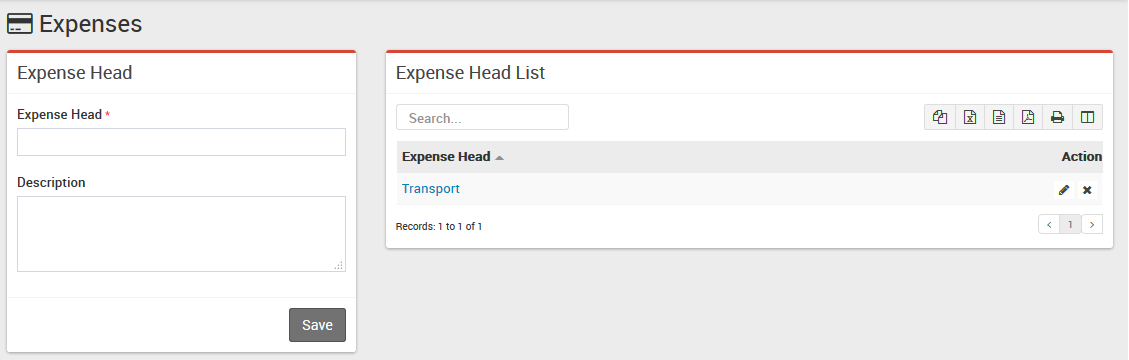
  • Expense Head– Go to Expenses > Expense Head enter Expense Head and its Description then click on Save button. All expense head can be see right side of this page.Reliable Public School Expenses Head
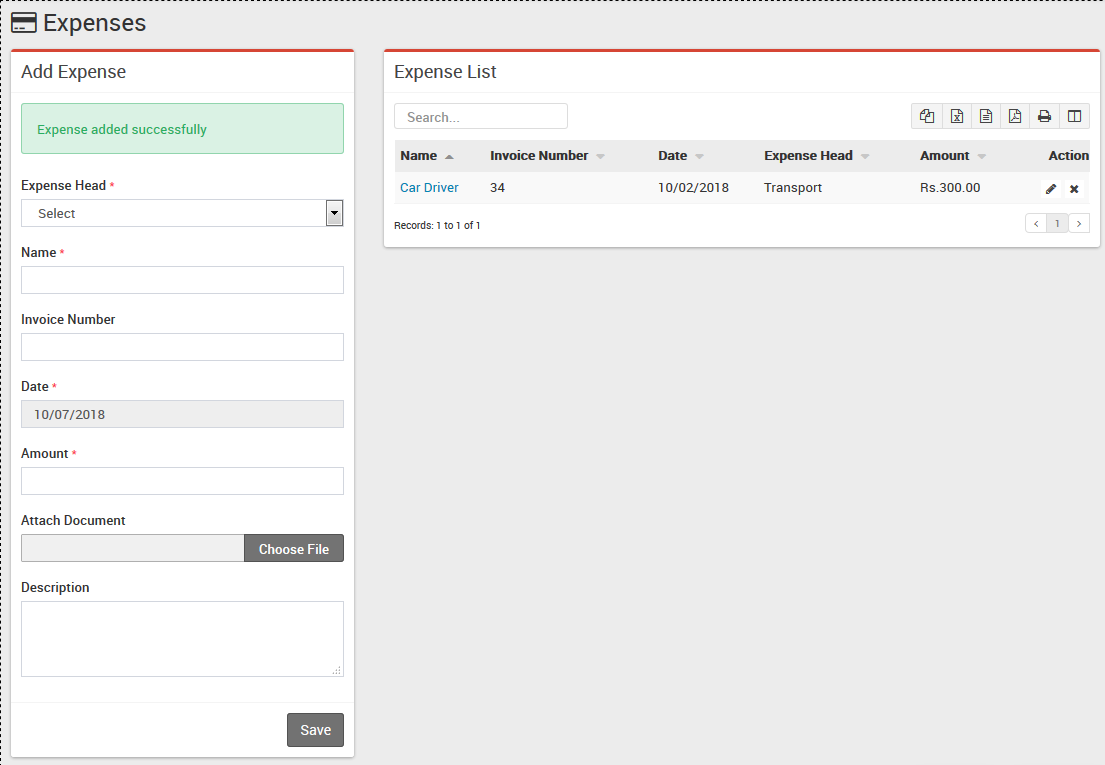
  • Add Expense– Go to Expenses > Add Expense select Expense Head then enter expense Name then Invoice Number, Date of expense then Amount then Attach Document then Description & click on Save button. Recently added 10 expenses can be see right side of this page. Reliable Public School add expenses
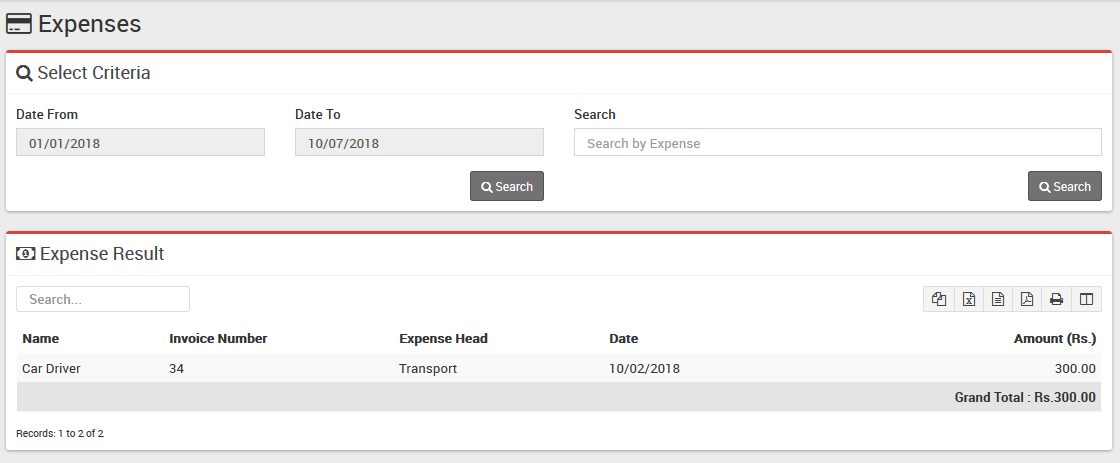
  • Search Expense– Go to Expenses > Search Expense to search expenses between two dates or by a keyword select Date From & Date To or enter keyword then click on Search button, you will get the list of all expenses related to your search criteria.Reliable Public School Search Expens
Share this
07 Oct 2018

Income Reliable School Management System

Income module has 3 sections –

  1. Add Income
  2. Search Income
  3. Income Head

First we will create our Income Head then we will Add our daily/monthly Incomes then we will Search our Income.

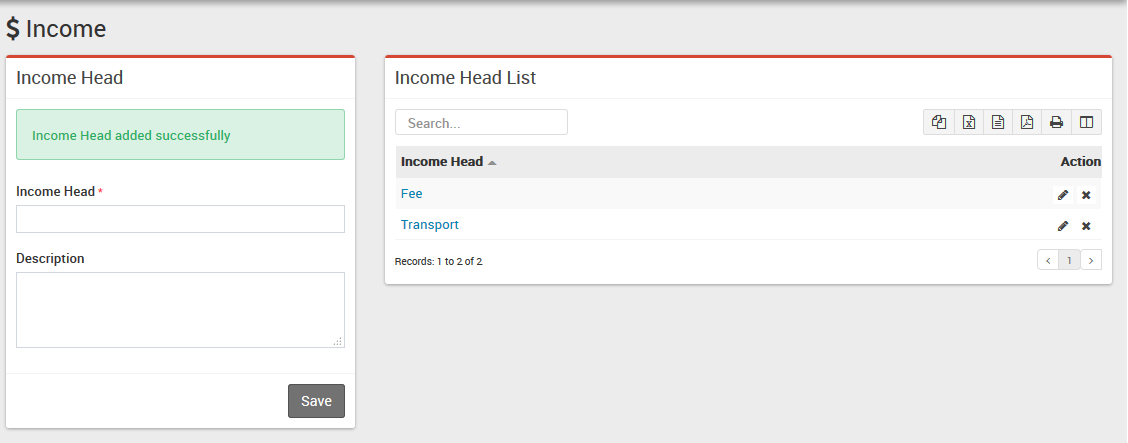
  • Income Head– Go to Income > Income Head enter Income Head and its Description then click on Save button. All Income head can be see right side of this page.Reliable Public School Income Head
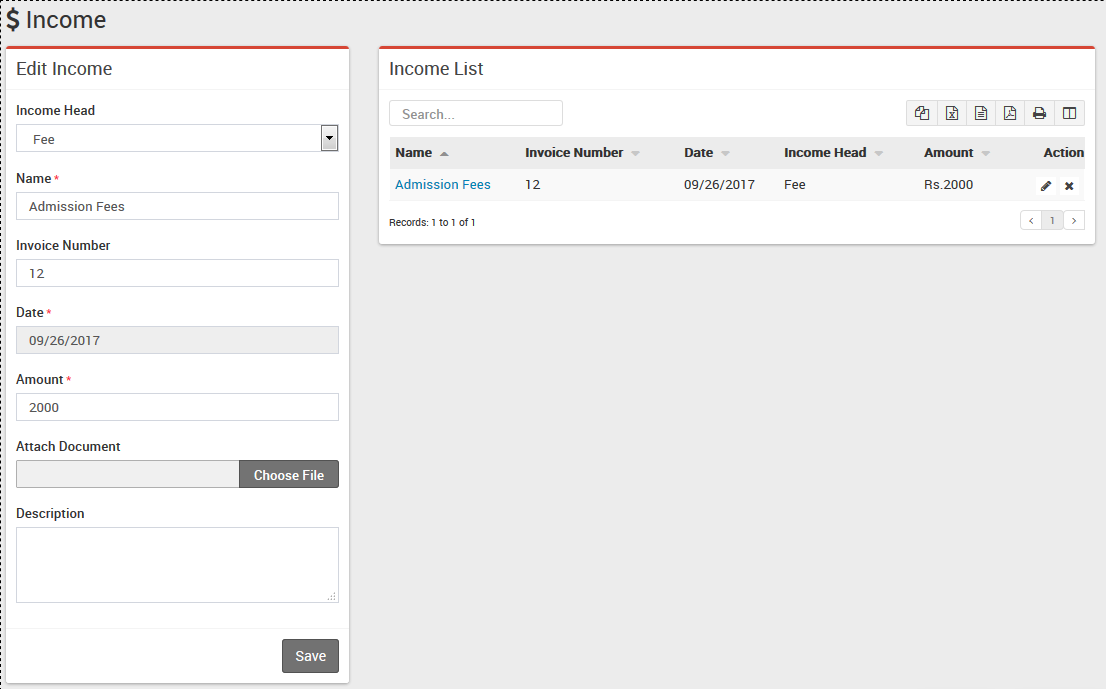
  • Add Income– Go to Income > Add Income select Income Head then enter Income Name then Invoice Number, Date of Income then Amount then Attach Document then Description & click on Save button. Recently added 10 Incomes can be see right side of this page. Reliable Public School Income
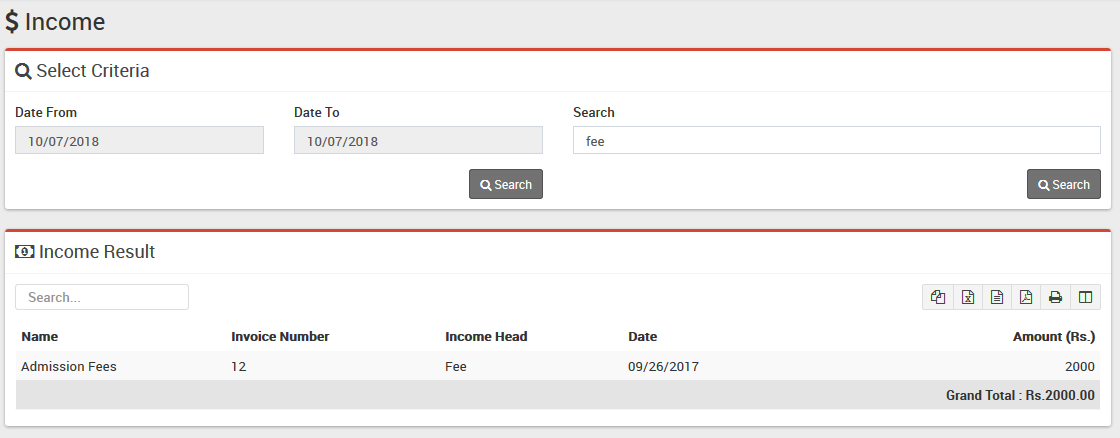
  • Search Income– Go to Income > Search Income to search Incomes between two dates or by a keyword select Date From & Date To or enter keyword then click on Search button, you will get the list of all Incomes related to your search criteria.Reliable Public School search Income
Share this
07 Oct 2018

Fees Collection Reliable School Management System

Fees Collection module has 10 sections –

  1. Collect Fees
  2. Fees Master
  3. Fees Group
  4. Fees Type
  5. Fees Discount
  6. Search Fees Payment
  7. Search Due Fees
  8. Fees Statement
  9. Balance Fees Report
  10. Fees Carry Forward

First we have to prepare our Fees Structure by configuring Fees Type, Fees Group and Fees Master then we will Collect Fees of students then we will understand and review various fees reports by using Search Fees Payment, Search Due Fees, Fees Statement and Balance Fees Report.Remember Fee Structure is session based.

Lets understand how we will create fees structure in Reliable School Management System by using Fees Type, Fees Group & Fees Master. Fees Type means different types of fees can be collect by school e.g. Admission Fees, April Month Fees, May Month Fees, June Month Fees, Exam Fees, Dress/Uniform Fees, Library Fees, Sports Fees, Transportation Bus Fees, Picnic Fees etc. Fees Group Fees Group is use to make grouping of different Fees Type Then you can assign/allocate this Fees Group to whole class-section or a particular student. When you assign/allocate a Fees Group on a class-section or a particular student all Fees Type under this group with their Fees Master amount will be applied directly. You can assign/allocate multiple Fees Groups on a class-section or a particular student. Suppose we have created a Fees Group with the name Class 6 (2 Instalments) and added Fees Types Admission Fees (Rs.1000), 1st Instalment (Rs.2000), 2nd Instalment (Rs.2000) then assign/allocate this Fees Group Class 6 (2 Instalments) on those students only who want to pay fees in 2 Instalments. You can create another Fees Group with the name Class 6 (1 Instalments) and add Fees Type Admission Fees (Rs.1000), Full Instalment (Rs.6000). You can also create another fees group with the name Class 6 Transport Fees and add Transport Fees as Fees Type and assign/allocate on those students who use transport facility.

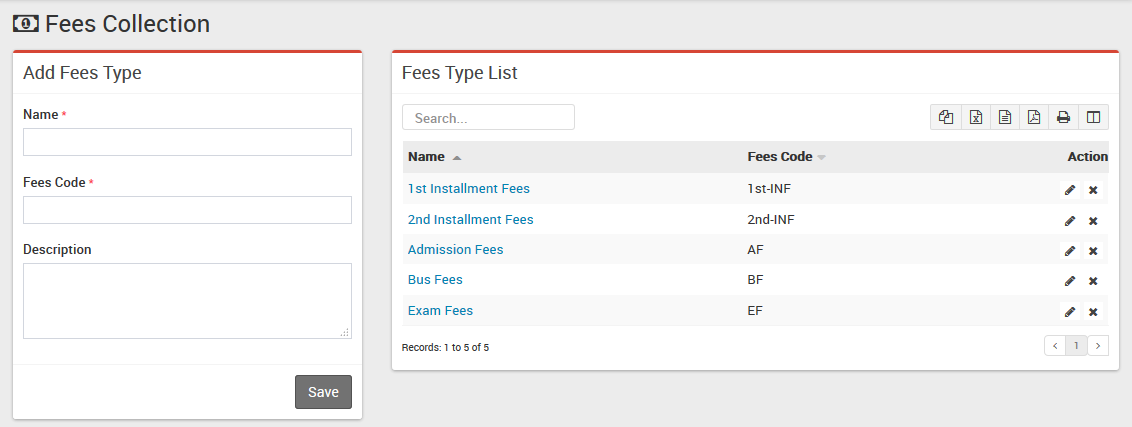
  • Fees Type– Go to Fees Collection > Fees Type add all your Fees Type here with Fees Code. All Fees Type can be see at right side of this page.Reliable Public School Fee Type
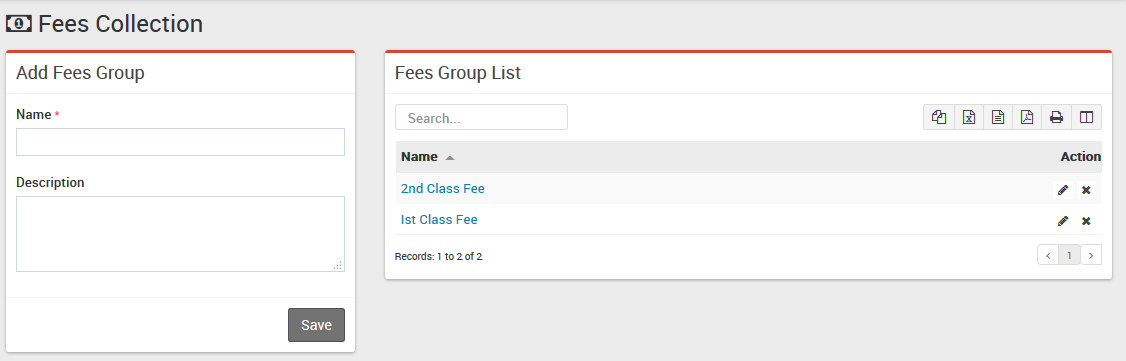
  • Fees Group– Go to Fees Collection > Fees Group add all your Fees Group here. All Fees Group can be see at right side of this page.Reliable Public School Fee Master
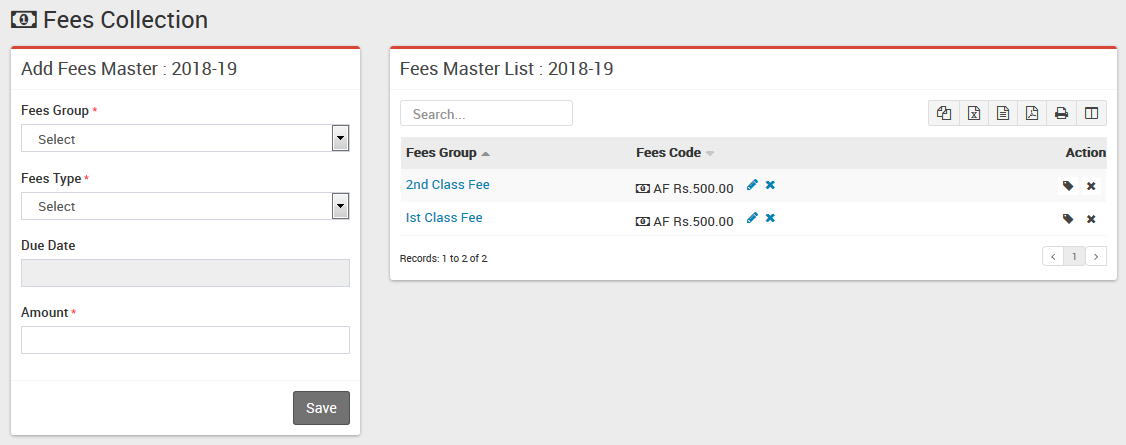
  • Fees Master– Go to Fees Collection > Fees Master add all your fees amount for current selected session here. Select Fees Group then Fees Type then Due Date then enter Amount means fees amount for selected session now click Save button. All Fees Master with Fees Group and Fees Code with amount can be see at right side of this page for current selected session.Reliable Public School Fee Master        To assign/allocate Fees Group click on Assign/View button from Action column. Now at next page select Class then Section and click on Search button. Now select the students on which you want to assign/allocate this Fees Group then click on Save button.
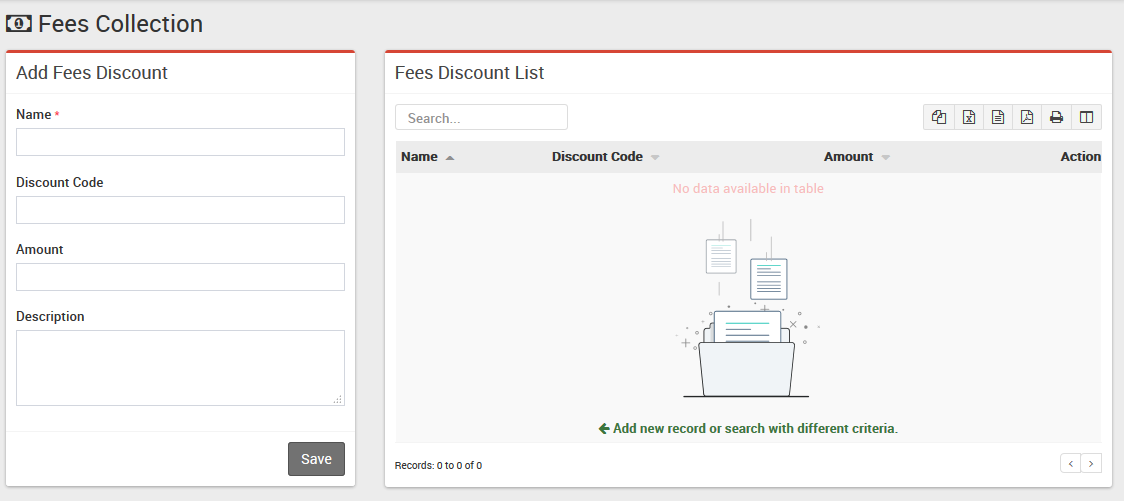
  • Fees Discount– Go to Fees Collection > Fees Discount add all your Fees Discount here with Discount Name, Discount Code, Amount and Description. All Fees Discount can be see at right side of this page. To assign/allocate discount click on Assign/View button from Action column.Reliable Public School Fee Collection     On Next page select Class and Section then click on Search button. After Search select students on which this discount have to be applied then click on Save button
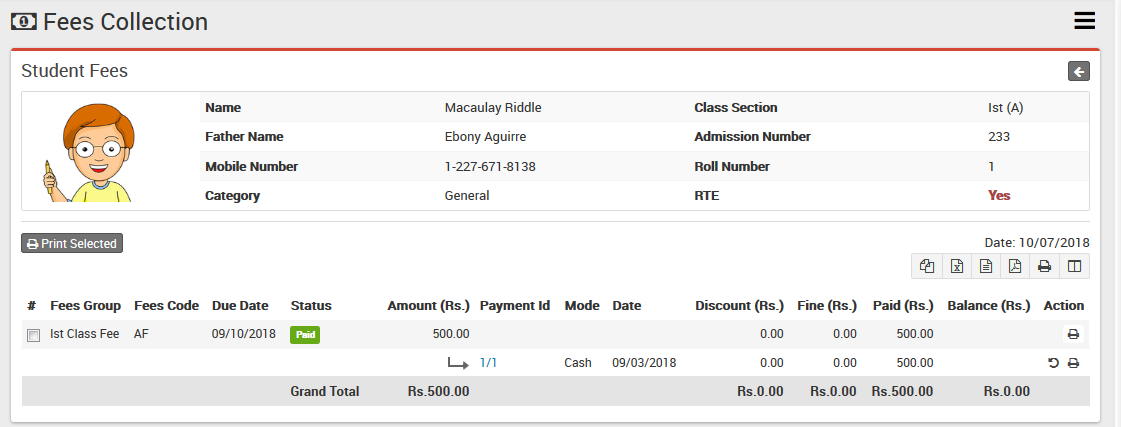
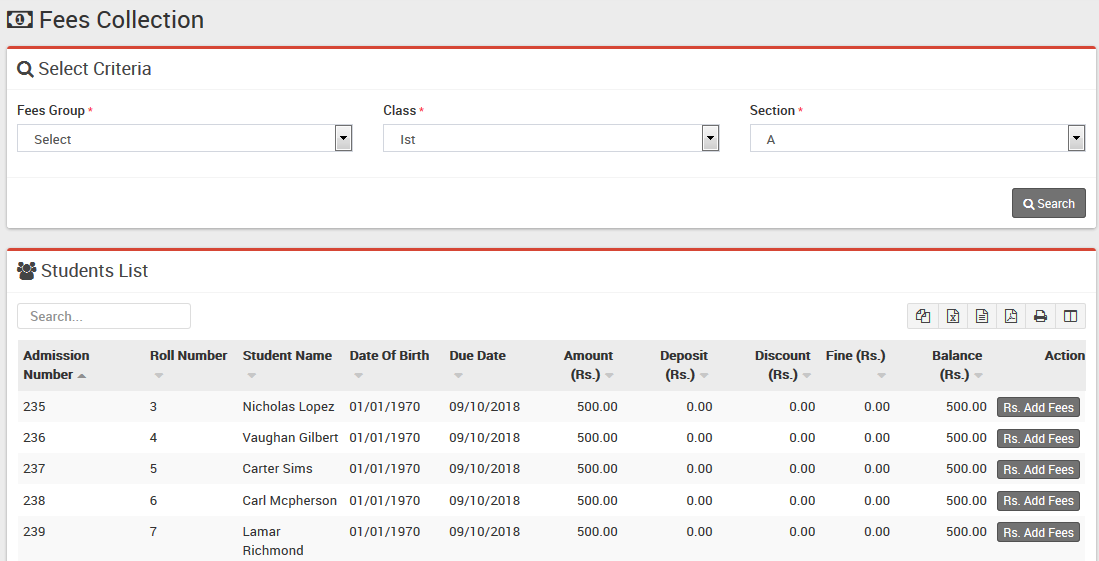
  • Collect Fees– Go to Fees Collection > Collect Fees select Class & Section & click in Search button to get student list under this class-section. You can also search student by keyword in Search Input Box and click on Search button. After search you will get student list below. Click on Collect Fees button to go to collect fees page. Here you can see student details including student picture then next you can see all assign/allocate fees details. Collecting fees is very simple just click the + button from Action column a modal window will appear, here select Date then Amount will be auto fetch by balance for this Fees Invoice. You can enter any amount for Partial Fees payment, then select Discount Group or enter Discount (if any) then enter Fine (if any) then Payment Mode then Note then click on Collect Fees button. Now fees has been collected & Revert button visible for reverting this fees. For printing Fees Receipt click on Print button from Action column.Reliable Public School Collect Fee
  • Fees Discount Adjustment: If you have applied discount by selection of Discount Group then there is no need for any adjustment. When you assign/allocate Fees Discount on any student then it will be only assigned. To make it apply you need to adjust this discount on any Fees Invoice payment by giving discount. To apply discount you need to first give discount on any fees invoice then click on Apply Discount button from Action column, a modal window will be open. Here enter Payment Id on which this discount has been given and enter description (if any). Now click on Apply Discount button to apply discount.
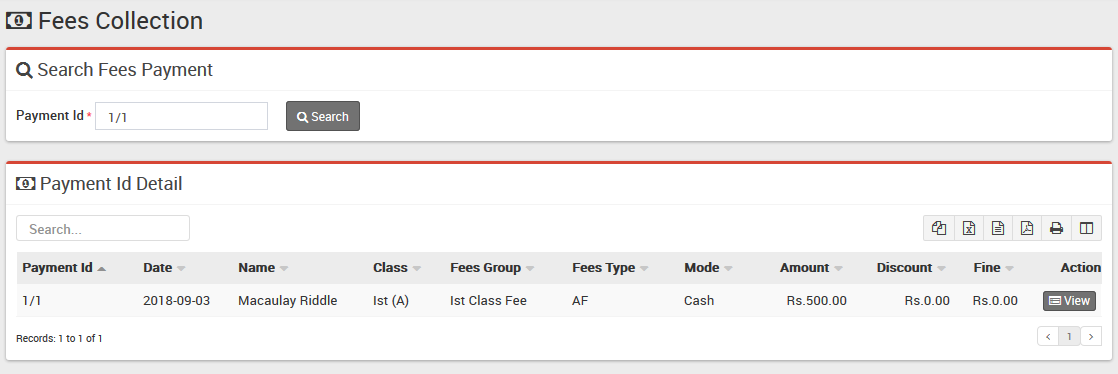
  • Search Fees Payment– Go to Fees Collection > Search Fees Payment for searching any fees payment details through Payment ID enter Payment Id & click search button you will get the details for this payment id.Reliable Public School Payment Details
  • Search Due Fees– Go to Fees Collection > Search Due Fees for searching those students who have not done payment for a particular fees type then select Fees Category then Fees Type then Class then Section & click Search button, you will get all the students list for due fees.Reliable Public School Due Fee
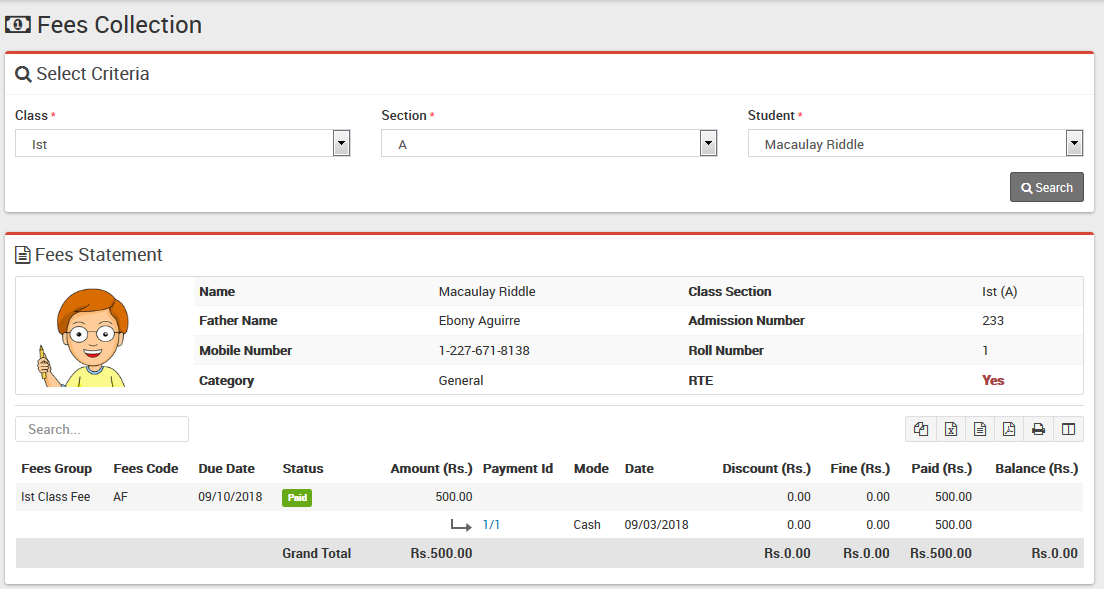
  • Fees Statement– Go to Fees Collection > Fees Statement to get fees statement for a student. Select Class then Section then Student then click Search.Reliable Public School Fee Statement
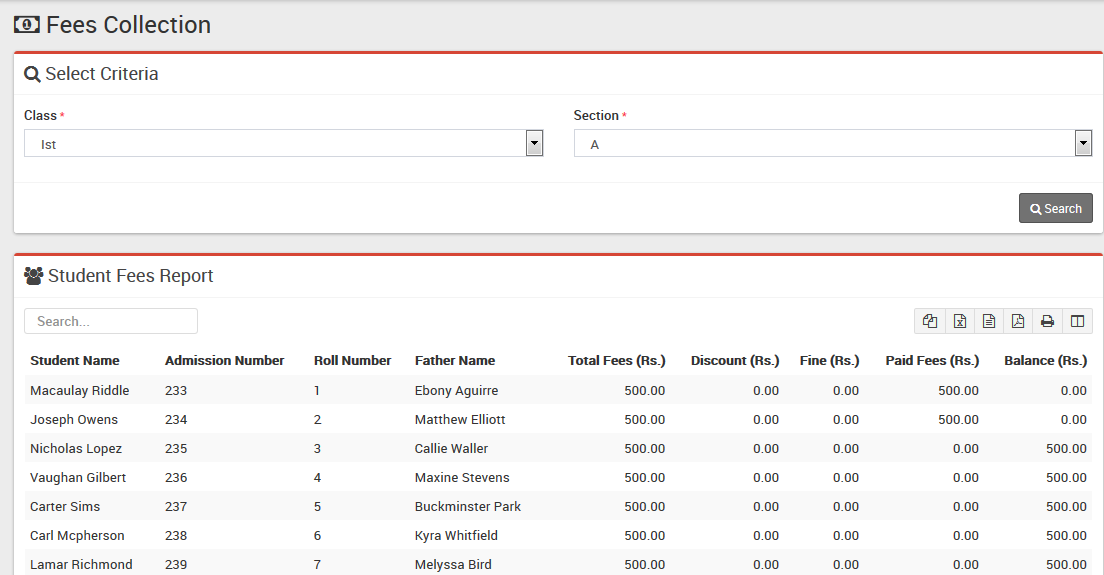
  • Balance Fees Report– Go to Fees Collection > Balance Fees Report to know Total Fees, Total Paid Fees & Total Balance Fees in a particular Section, select Class then Section then click on Search button.Reliable Public School Balance Report
  • Fees Carry Forward– Go to Fees Collection > Fees Carry Forward if any student has balance fees in previous session then you can forward this balance fees to current session. Select Class, Section then click Search button. Students with balance fees will be display below. If you want you can edit balance fees amount to be forward. In Top right corner you can see Due Date for all these fees forward. This Due Date will be number of days ahead which is set in System Settings > General Setting > Fees Due Days. This balance fees carry forward can be see in collect fees page as Balance Master (Fees Group) and Previous Session Balance (Fees Code).


Note: Fees Type and Fees Group are not dependent on Academic Session but Fees Master is created session wise so you need to enter Fees Master data for every session.

Share this

© 2014 Reliable Automation. All rights reserved.

Click Me