06 Oct 2018

Academic Details Reliable School Management System


After completion of  basic setup of school, its time to add academic details in Reliable School Management System like Classes, Sections, Subjects, Teachers.

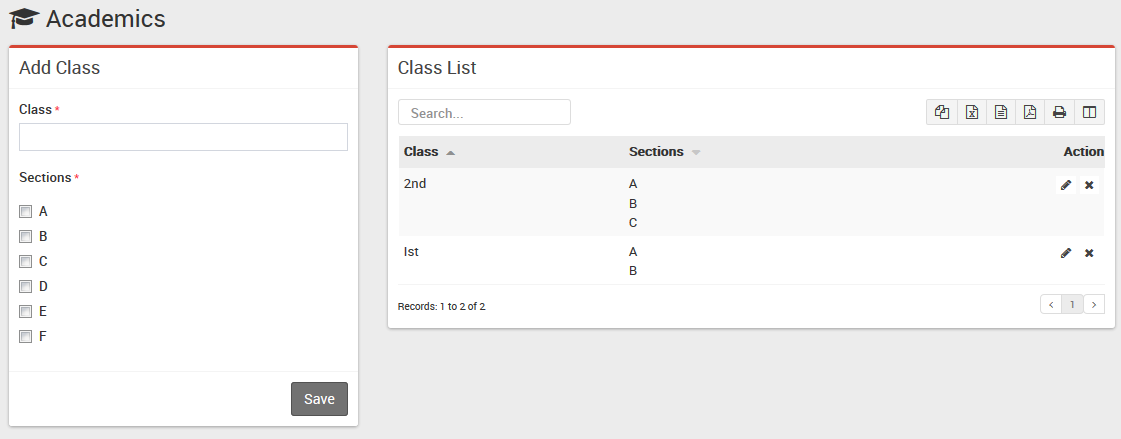
  • For adding classes go to Academics > Classes, before adding classes first add Sections from Academics > Sections. Select Sections comes under a Class when you adding a Class. Classes can be add from left side Add Class form and added classes can be see right side Class List. Add all classes running in your school here.Academic Details Reliable School Management System
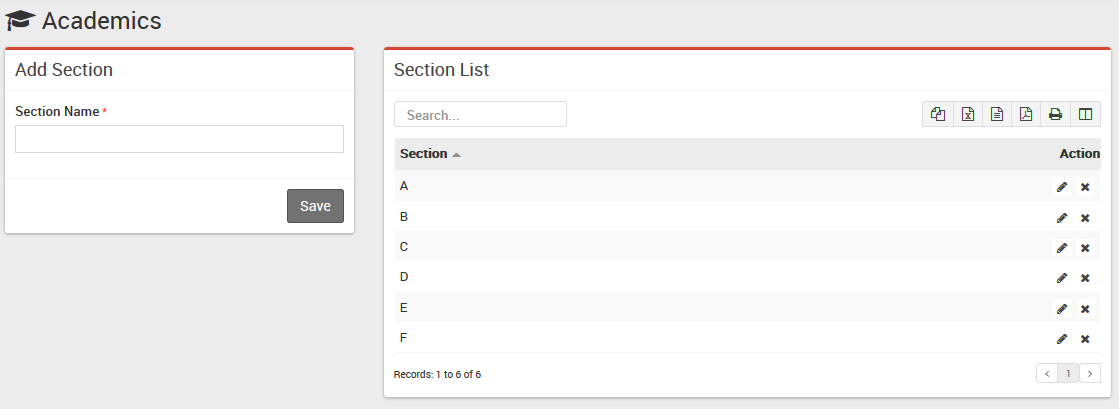
  • For adding sections go to Academics > Sections, Sections can be add from left side Add Section form and added section can be see right side Section List. Add all section name used in your school here e.g. Class 1 has 3 sections A, B, C and Class 2 has only A, B sections then we will add 3 sections A, B, C here. After adding sections, select section comes in a Class when you adding Classes.Academic Details Reliable School Management System
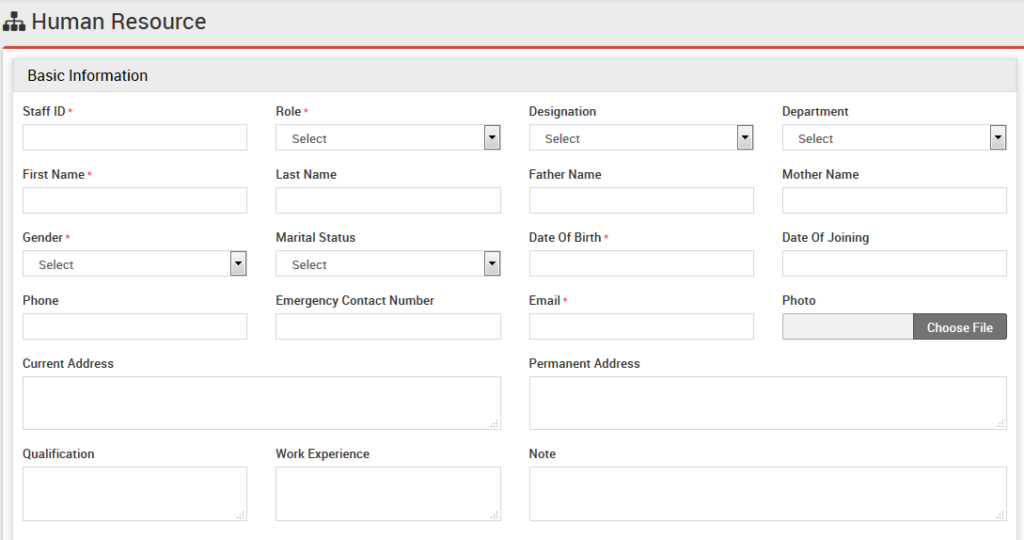
  • For adding Teachers go to Human Resource > Staff Directory, Teachers can be add from top right corner Add Staff button. At this page you can add any staff by selecting its role. If we are creating teacher then we should select Teacher as role and designation as role.Academic Details Reliable School Management System
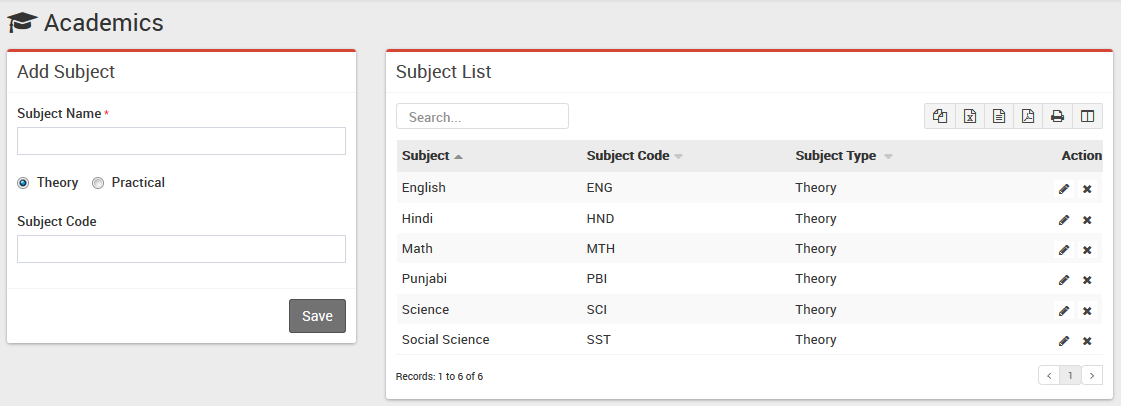
  • For adding subjects go to Academics > Subjects, Subjects can be add from left side Add Subject form and added subjects can be see right side Subject List. Add all subjects including theory and practical in your school here. Subjects will be assign to their classes in next step.Academic Details Reliable School Management System
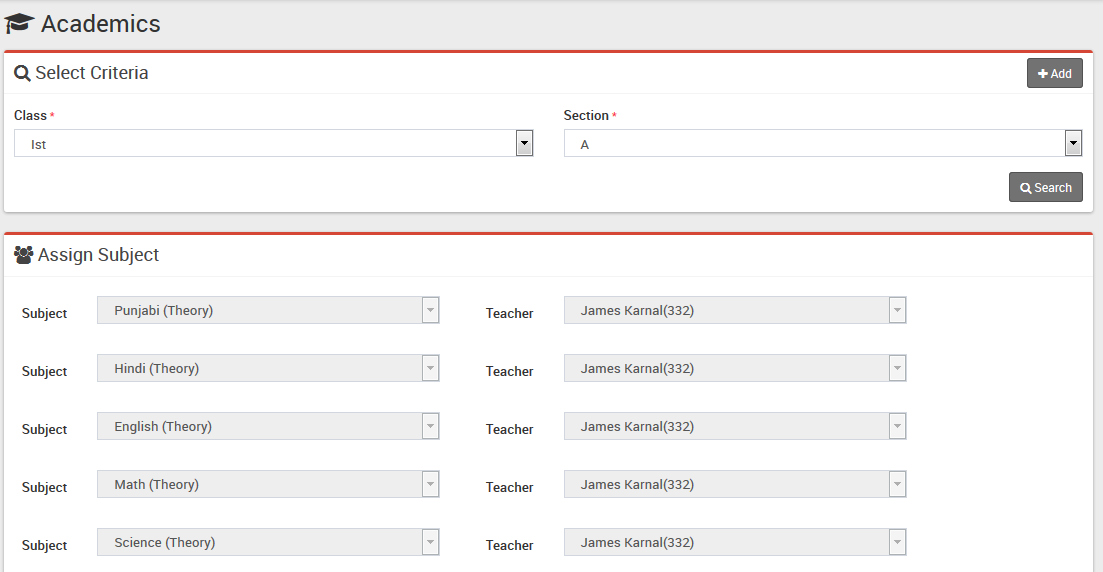
  • For assigning subjects to their classes go to Academics > Assign Subjects select Class 6 and section A then click on Search button, now below a row has been open for selecting subject and teacher for this subject. For adding more rows click on Add button. After selecting all subjects and their concerning teachers click on Save button in present right bottom to save all subjects and teachers under this class-section.Academic Details Reliable School Management System
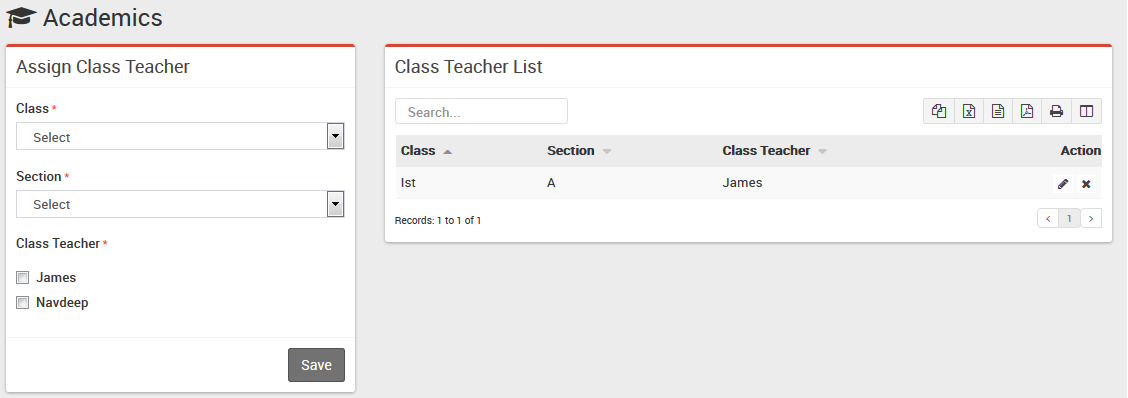
  • For assigning Class Teacher on Classes go to Academics > Assign Class Teachers select Class 6 and section A then check on Teachers you want to assign as Class Teacher. Academic Details Reliable School Management System
Great! Reliable School Management setup is completed. Next we will discuss Student Information module.
 

Share this
06 Oct 2018

Student Information Reliable School Management System

Student Information module has 9 sections –

  1. Student Details
  2. Student Admission
  3. Student Report
  4. Guardian Report
  5. Student History
  6. Student Login Credential
  7. Student Categories
  8. Student House
  9. Disabled Students

Before adding any student detail we have to add Categories, School House then take Student Admission.

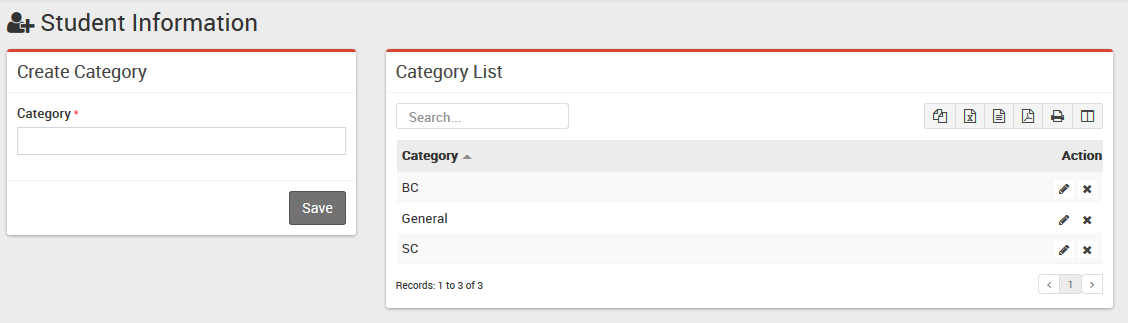
  • Student Categories– Go to Student Information > Student Categories Add all student categories here. Student categories can be caste, community or group wise.Reliable Public School Category
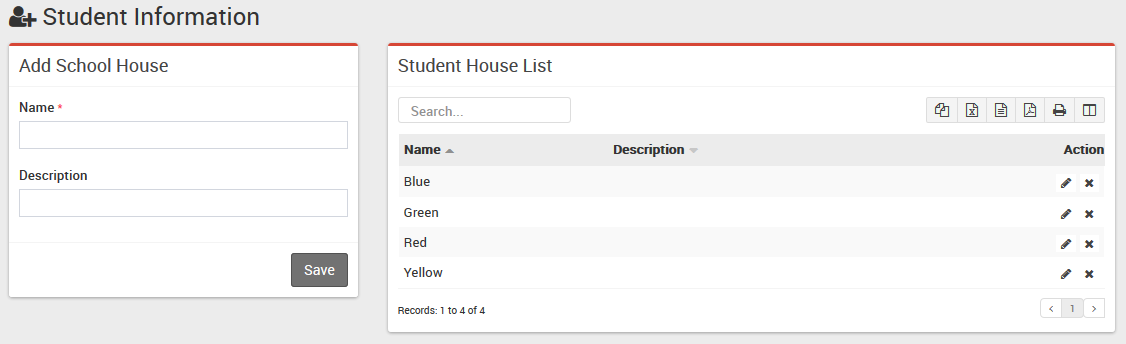
  • Student House– Go to Student Information > Student House Add all student house here. Student house is also another type of grouping of students. Reliable Public School Houses
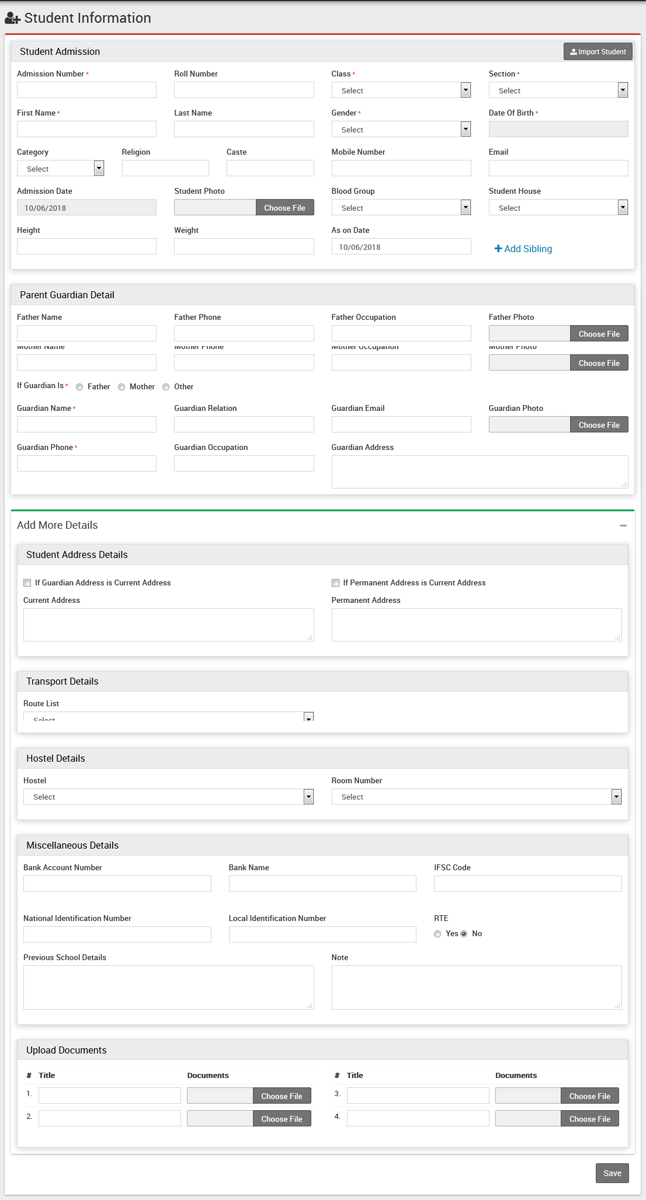
  • Student Admission– Go to Student Information > Student Admission add student basic details Admission No, Roll No, select Class and Section, First Name, Last Name, Gender, Date Of Birth, Category, Religion, Caste, Student Mobile Number, Email, Admission Date, Student Photo, Blood Group, Student House, Height, Weight, As on Date,Click on Add Sibling button if this student has sibling and already study in this school and select sibling , add student Father, Mother and Guardian details. Now click on Save button to complete student admission, if you want to add more details of student like Student Address Details, Transport Route Details, Hostel Details, Miscellaneous Details, RTE (Right To Education – in some countries there is a government funded scheme under which student get free education and government pay fees for these students) and Upload Documents then click on Add More Detail button. Student admission, admit students in by default in current selected session.To importing bulk students for admission click on upper right side Import Student button. Now select class and section and browse .csv and click on Import Students Data file to import student data. You can download sample .csv file by clicking upper right Download Sample Import File button. Note that by importing bulk student you have to update student record for proper admission record.Reliable Public School Student Admission
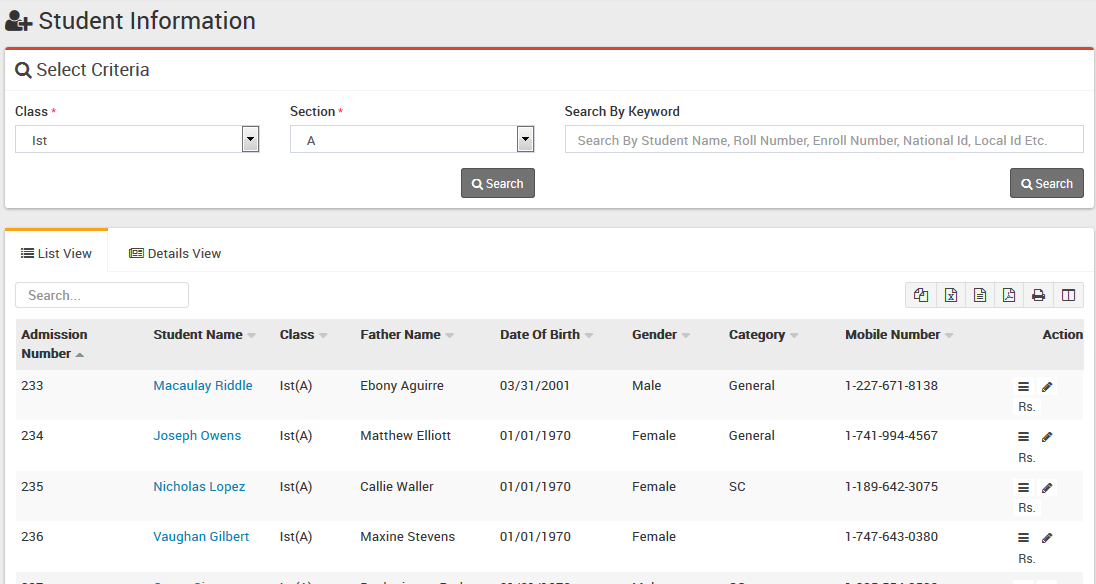
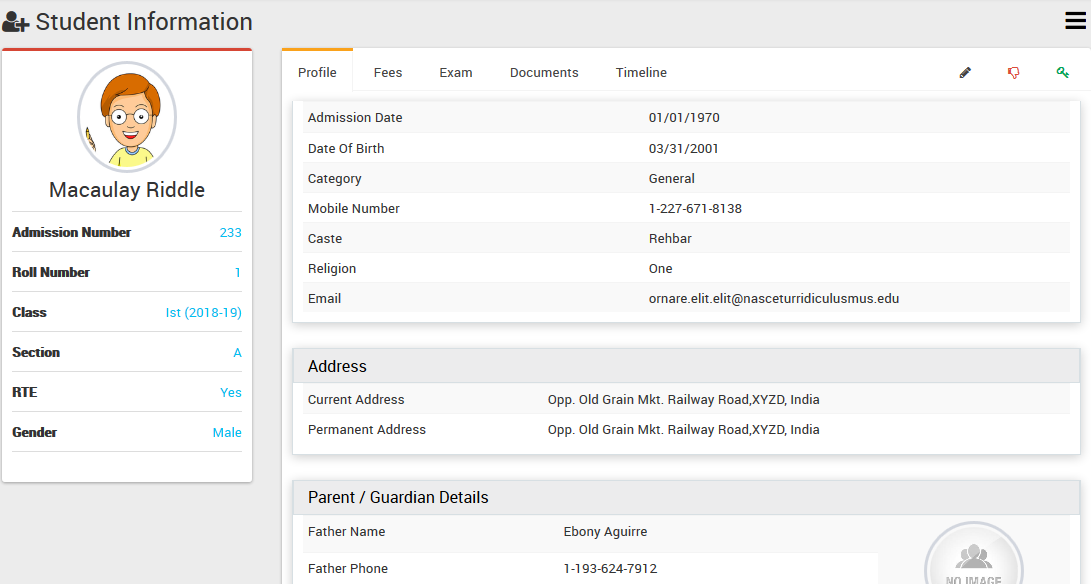
  • Student Details– Go to Student Information > Student Details select Class and Section and click on Search button to get student list under this class-section. You can also search student by keyword in Search Input Box and click on Search button. After search you will get student list below. There are two views here one is List View and Details View. Every row has three buttons in right side Show (to see student profile), Edit (to edit student profile) and Add Fee (to add student fees). Click on Show button to open student profile. Student profile page provides 360* View of student, consist student basic details, address details, parent / guardian details, miscellaneous details, fees details, exam details, documents and timeline related to student. You can check student and their guardian login credentials by clicking on Login Details link. If any student get admitted by mistake and we need to Disable student then you can click on red color hands down icon button. After disabling student you can also Delete this disabled student. Be careful! once student deleted, there is no way to rollback its record. Reliable Public School Student ListReliable Public School Student Details
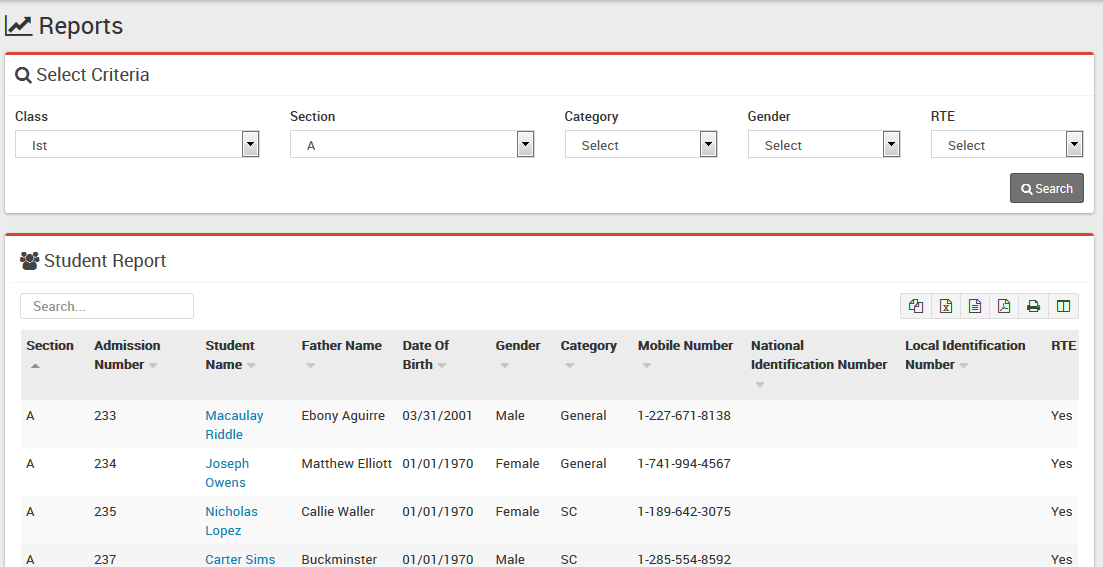
  • Student Report– Go to Student Information > Student Report here you can view class-section wise student report.Reliable Public School Student Report
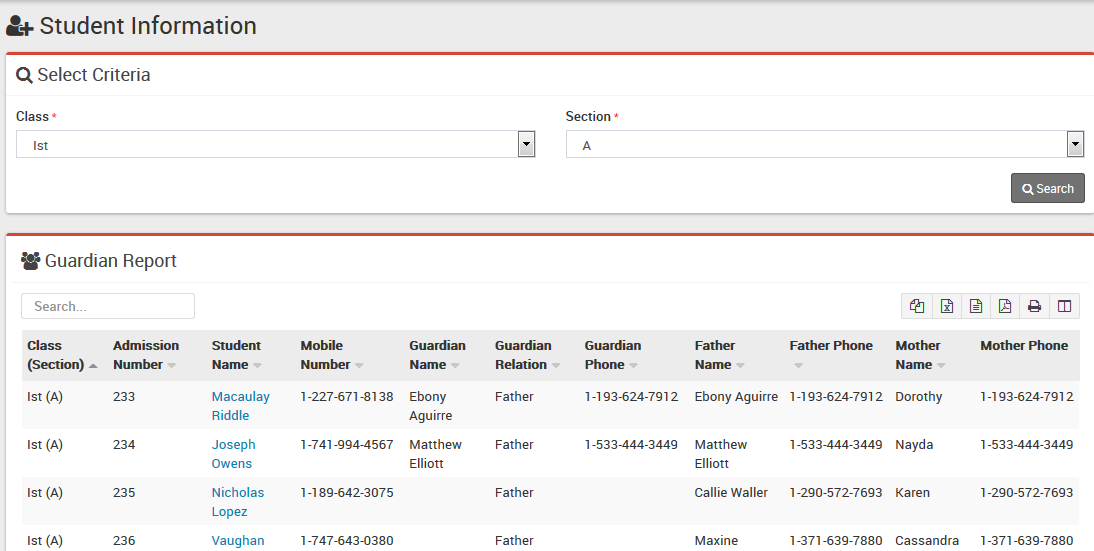
  • Guardian Report– Go to Student Information > Guardian Report here you can view class-section wise student guardian report. Reliable Public School Guardian Report
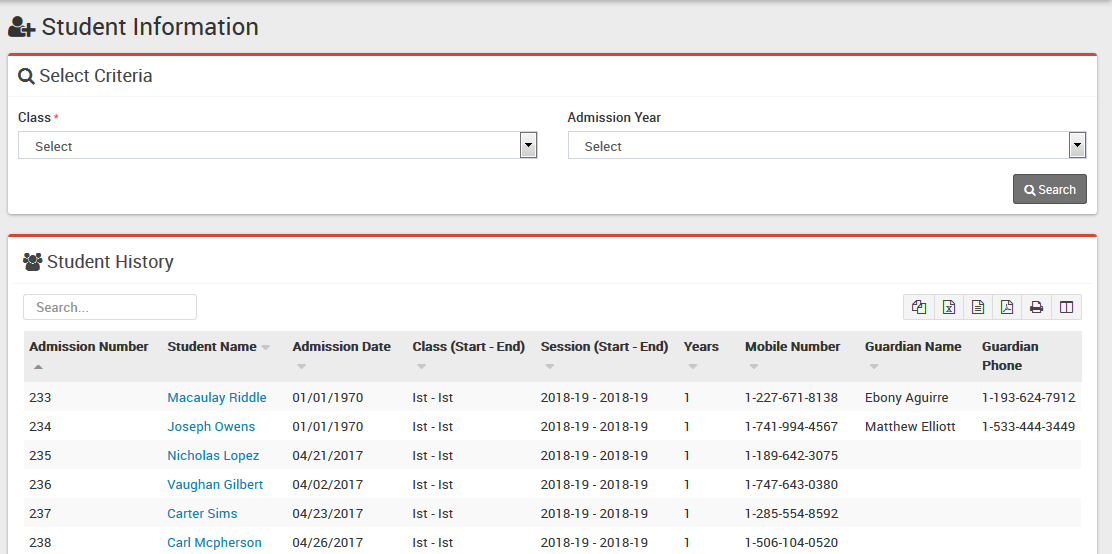
  • Student History– Go to Student Information > Student History here you can view class and session wise Student History. Reliable Public School Student History
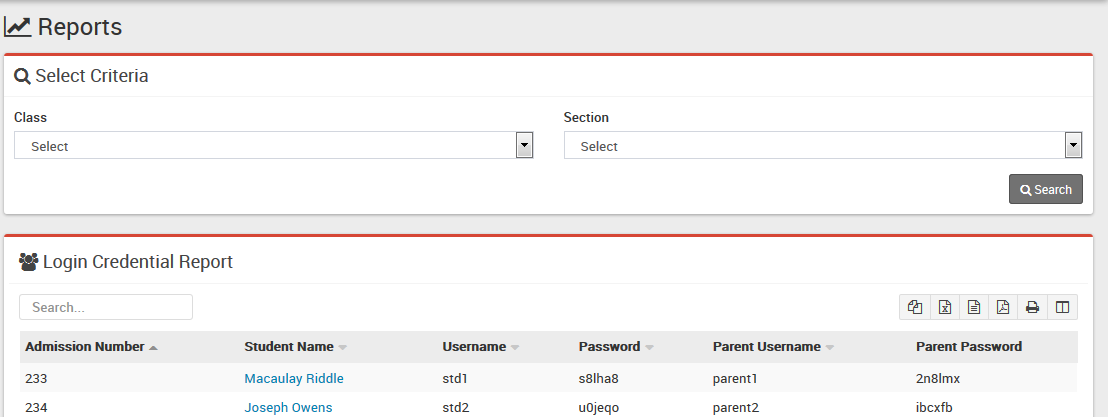
  • Student Login Credential– Go to Student Information > Student Login Credential here you can view class-section wise Student/Parent Login Credential. Reliable Public School Login Details
  • Disabled Student– Go to Student Information > Disabled Student here you can view all Disabled Students.


Note: If student has more than one sibling study in school then you do not have to select all the siblings just select any one sibling and system automatic detects other siblings.

Share this
04 Oct 2018

System Settings Reliable School Management System

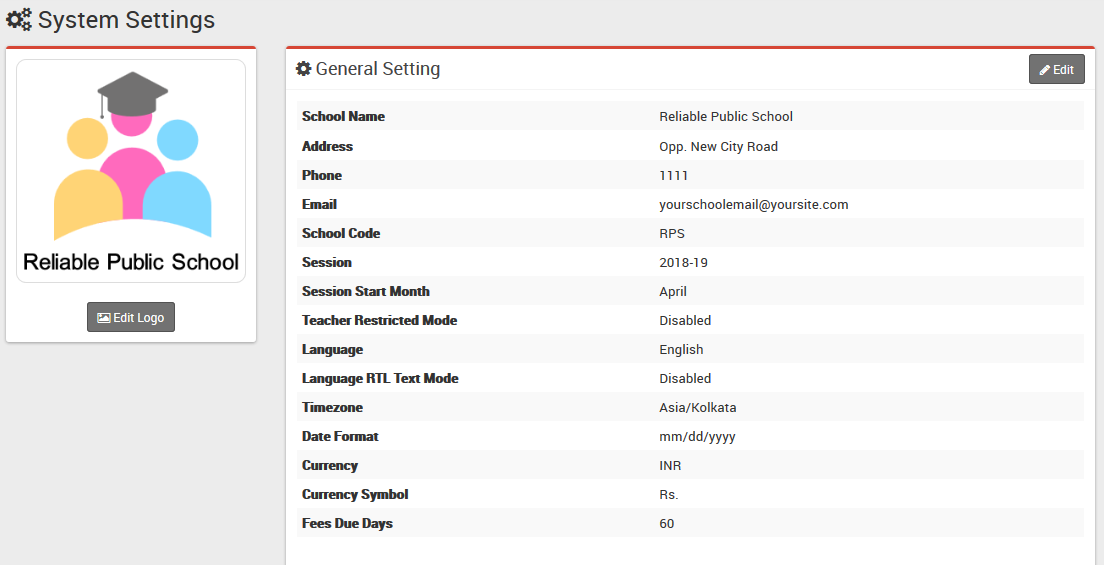
  • In the Admin panel click on Edit button to update your school data under System Settings > General Setting in upper right side .
  • System Setting Reliable School Management System
  • Update detail like School Name, Address, Phone, Email, School Code (Your school affiliation / accreditation no), Session (current running Academic Session for the school), Session Start Month, Teacher Restricted Mode, Language , Language RTL Text Mode (applied only to Arabian side languages), Timezone, Date Format, Currency (ISO standard 3 digit currency code), Currency Symbol and Fees Due Days (used in Fees Carry Forward) now click on Save button to update record.
  • For updating logo click on Edit Logo button,choose your school logo file (it is recommended for logo to use .png image with transparent or white background and around 200px x 200px in size) now click on Edit button to update logo image.
  • For automated SMS messaging add any one of available SMS Gateway with the required details from System Settings > SMS Setting.
  • To enabling online payment in Parent Panel and Student Panel update your payment gateway account details for this, go to System Settings > Payment Methods select your appropriate payment gateway and add you payment gateway account details then click on save button and enable it from right side box.
  • At this point we have completed basic setup of our school. Now we will add our academics in Smart School like Classes, Sections, Subjects, Teachers.

Note: In Teacher Restricted Mode teachers can see only their allotted class student data as Class Teacher or as Subject Teacher)

Share this
02 Sep 2018

Login to Reliable School Management System Admin Panel

As we are providing Reliable School Management System as SAS, we will make url for Login to Admin Panel.

Login to Admin Panel through URL – http://schoolname.relaut.com/site/login

For our demo you can click here to login and see the working of Reliable School Management System without paying any amount.

Login to Demo Admin Panel


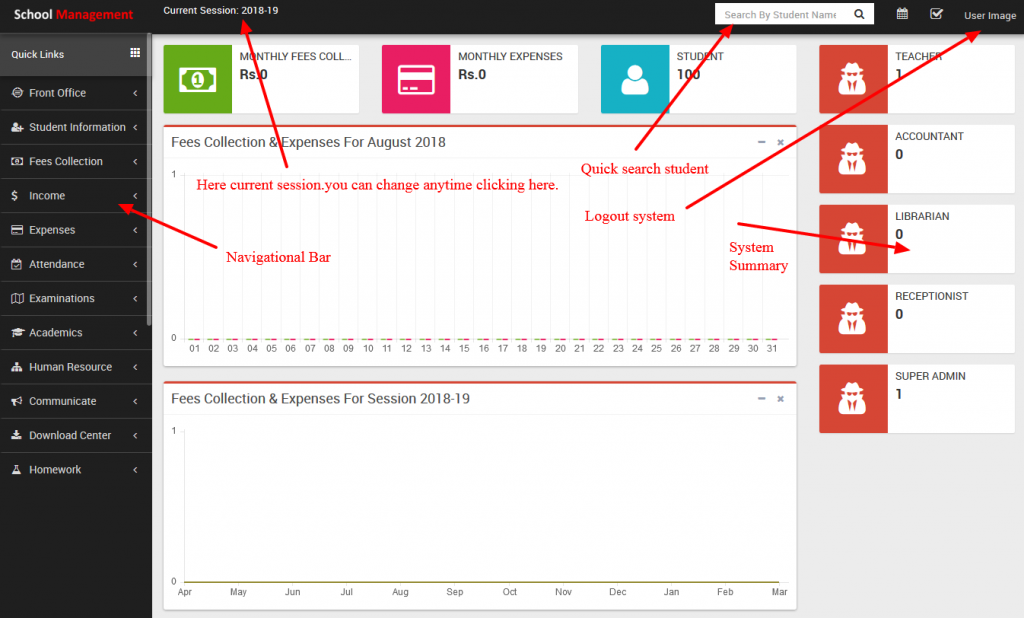
After successful login you will reach to Admin Dashboard. Below you can find navigational overview of screen.

Reliable School Management System Admin Panel

Here are some of the modules provided in the panel –

  • Front Office – for all reception/front office related activities like enquiries, calls, visitors, postal receive/dispatch
  • Student Information – for all the information related to student like student search, profile, student admission, student history
  • Fees Collection – for all the details related to student fees collection, fees master creation, fees dues, fees reports
  • Income – for all the income other than fees collection can be manage here like add income, search income, income head
  • Expenses – for all the expenses related to school can be manage here like add expenses, search expenses, expense head
  • Attendance – for managing student attendance and attendance report
  • Examinations – for managing all the exams conducted by school like create exam, schedule exam, exam marks entry, marks grade
  • Academics – for managing all the parameters / master data required to run school like classes, sections, subjects, assign teachers, class timetable, promote student to upper class
  • Human Resource – for all the information related to staff members can be manage here like staff search, profile, attendance, payroll, leaves
  • Communicate – it works like a notice board basically a messaging system for communication to students, parents and teachers
  • Download Center – for managing downloadable documents like assignments, study material, syllabus and other documents need to distribute students and teachers
  • Homework – teachers can give homework here and further evaluate them
  • Library – all the books in your library can be manage here
  • Inventory – manage all the assets of your school with stocks and store under inventory module
  • Transport – for managing transportation service like routes and their fares
  • Hostel – for managing hostels, hostel rooms and their fares
  • Certificate – design and generate student certificate and ID Card here
  • Front CMS – manage front public site of Smart School here by creating pages, menus, events, gallery, news
  • Reports – all the various reports related to different modules can be found here
  • System Settings – configure Smart School here for different settings like school, sessions, admin password, SMS, Paypal, backup / restore, languages
  • Calendar & ToDo List – track and manage all daily/monthly activities and create your task in to do list

To understand how Reliable School Management System works first we need to configure and setup it for our school. In the next article/ documentation we will change some basic settings according to our school.

Share this
02 Sep 2018

Using Reliable School Management System

You don’t have to take any panic on how to do the things.We are providing the Reliable School Management System as SAS.We will setup the things according to you/your school and provide details to you.

Before start using our Reliable School Management System consider a general scenario of typical school of class 1 to 12th, each classes have sections like Section A, Section B. Students enter in classes by new admission or promoted from previous class after successful passing of previous class. During course of student we will charge fees to students and collecting them at monthly or one time basis. We like to record attendance of our students. There will various subjects for different classes like some subjects are theory and some are practical. Exams are created using these subjects and classes. Our School may be providing transport facility to student. Our school have hostels and providing hostel facility to our students. Obviously our school has teachers to teach and manage students. We like to communicate our teachers, students and parents. Our school have library for students have to maintain books inventory. We like to record all the expenses done in our school like miscellaneous bills, salary payments etc. After everything we like to analyze various reports based on our school.

Apart from above we provide access to Reliable School Management System to other users like Teachers, Accountants, Librarians, Students and their Parent. For these Smart School have 8 inbuilt user’s roles- SuperAdmin, Admin, Teacher, Accountant, Librarian, Receptionist, Student and Parent. Virtually you can create unlimited number of user roles for staff members.

Click here to learn how to Login to Admin Panel and learn the various parts of the system and how they work.

Share this

© 2014 Reliable Automation. All rights reserved.

Click Me